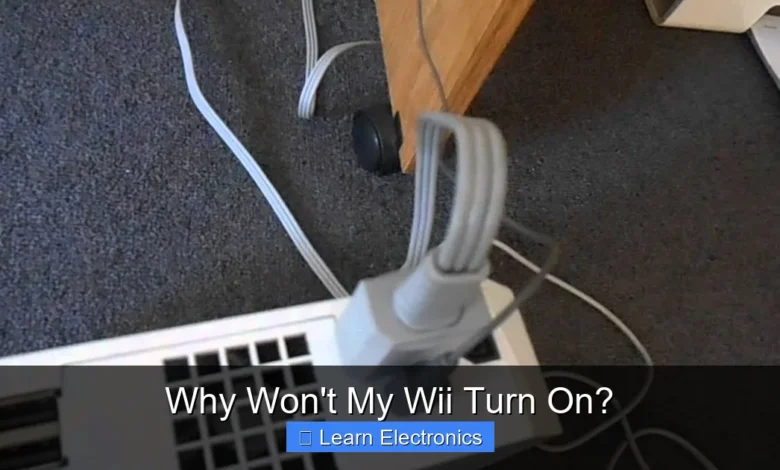
Why Won’t My Wii Turn On? Often, the primary culprits are simple power supply issues or problems with the console’s physical connections. Troubleshooting this common console dilemma requires a systematic examination of various components to pinpoint the exact failure.
Understanding the typical points of vulnerability for the Wii can significantly aid in diagnosing and potentially resolving the problem yourself. This approach emphasizes checking the most common causes before delving into more complex hardware issues.
Quick Answers to Common Questions
My Wii has no lights at all. What’s wrong?
This usually points to a power supply problem. First, ensure your power adapter is firmly plugged into both the Wii console and a working wall outlet, as a loose connection can prevent your Wii from turning on.
My Wii shows a red light, but still won’t turn on. Help!
A persistent red light often means the console is receiving power but isn’t initiating properly. Try unplugging the power adapter from the Wii for at least 30 seconds, then plug it back in; this can sometimes reset the system.
I’ve tried everything, could it be the Wii console itself?
If you’ve checked the power supply and tried a power cycle with no luck, it’s possible the internal components of your Wii console are experiencing an issue preventing it from turning on. This might mean the console itself needs professional repair or replacement.
📑 Table of Contents
- Troubleshooting Power Issues: Why Won’t My Wii Turn On?
- Display and Cable Connectivity Checks
- Controller and Disc Drive Anomalies
- Internal Hardware Failures: When the Problem Runs Deeper
- Software Corruption and System Update Woes
- Preventative Measures and Maintenance for Your Wii
- Wii Troubleshooting Quick Reference
Troubleshooting Power Issues: Why Won’t My Wii Turn On?
The most frequent reason a Wii console fails to power on is related to its power source. Before assuming the worst, a thorough check of the power supply components is essential. This often resolves the problem quickly and without much hassle.
Inspecting the AC Adapter
The AC adapter is the lifeline of your Wii. It converts wall current into the specific voltage and amperage required by the console. Any issue with this component will prevent your Wii from powering on.
- Check for Physical Damage: Examine the entire length of the cable for any cuts, frays, or kinks. Pay close attention to the ends where the cable connects to the brick and the console.
- Verify Connections: Ensure the AC adapter is securely plugged into both the wall outlet and the back of the Wii console. A loose connection is a common oversight.
- Look for the Indicator Light: Most Wii AC adapters have a small blue or green LED light on the power brick. If this light is off, it indicates no power is reaching the adapter, or the adapter itself is faulty. If it’s on, power is at least reaching the brick.
- Test with a Known Good Adapter: If you have access to another Wii AC adapter, try using it. If the console powers on with the new adapter, your original one is likely defective and needs replacement.
Checking Wall Outlets and Power Strips
Sometimes, the issue isn’t with the console or its adapter, but with the power source itself.
- Try a Different Outlet: Plug the Wii’s AC adapter into a different wall outlet that you know is working (e.g., one where a lamp or phone charger operates).
- Bypass Power Strips/Surge Protectors: If you’re using a power strip or surge protector, plug the AC adapter directly into a wall outlet. Power strips can fail or become overloaded, preventing power from reaching your devices.
- Check Breakers: Ensure that the circuit breaker for the outlet you’re using hasn’t tripped.
Internal Power Board Considerations
If the AC adapter is working and delivering power, but the Wii still shows no signs of life (no LED, no fan, no display), the internal power board might be at fault. This is a more advanced issue that typically requires opening the console. Unless you have experience with electronics repair, it’s often best to consult a professional or consider replacement if you reach this point. Common symptoms include a completely dead console even with a functional external power supply.
Display and Cable Connectivity Checks
Sometimes your Wii might be turning on, but you’re just not seeing anything on the screen. This can make it seem like the entire console is dead, when in fact, it’s just a display issue. This method involves checking your video connections.
Verifying A/V Cable Connections
The A/V (audio/video) cable connects your Wii to your television. A loose or damaged cable can result in a blank screen.
- Secure Connections: Ensure the multi-out plug is firmly seated in the back of the Wii and the red, white, and yellow (or component) plugs are securely connected to the correct input jacks on your TV.
- Inspect the Cable: Check the A/V cable for any signs of damage, such as bends, cuts, or frayed wires. A damaged cable can prevent video or audio signals from reaching the TV.
- Test with Another Cable: If possible, try a different A/V cable. Cables can fail internally without visible external damage.
Correct TV Input and Resolution Settings
Your TV needs to be set to the correct input channel for the Wii’s signal to be displayed.
- Cycle Through Inputs: Use your TV remote to cycle through all available input or source options (e.g., AV1, AV2, Component, HDMI1, HDMI2). The Wii typically uses an “AV” or “Component” input.
- Check TV Resolution: While less common for a “no display” scenario, incorrect TV resolution settings on newer TVs could sometimes cause compatibility issues. Ensure your TV is set to accept standard definition (480i) or enhanced definition (480p) signals.
Different Cable Types and Their Impact
The Wii supports different types of A/V cables, and using the wrong one or having an incompatible setup can cause issues.
- Composite (Yellow, Red, White): This is the standard definition cable included with most Wiis. It provides a basic picture.
- Component (Red, Green, Blue for video; Red, White for audio): This cable offers a higher quality, enhanced definition (480p) picture. Ensure all five plugs are connected correctly to the corresponding component input on your TV. If your TV doesn’t have component inputs, this cable won’t work.
Controller and Disc Drive Anomalies
While less common for a completely dead console, issues with peripherals or the disc drive can sometimes prevent the Wii from fully booting or responding, leading you to think the entire system is unresponsive.
Sync Issues and Battery Status
If your Wii powers on (e.g., the power LED illuminates), but you can’t navigate the menu, the problem might lie with your Wii Remote.
- Check Remote Batteries: Ensure your Wii Remote has fresh batteries. A dead remote won’t be able to communicate with the console.
- Resync Remote: Press the red SYNC button inside the battery compartment of your Wii Remote, then quickly press the red SYNC button located under the SD card slot on the Wii console. The remote’s player lights should flash and then settle on one light if successful.
- Remove all Peripherals: Disconnect any Nunchuks, Classic Controllers, or other accessories from the Wii Remote. Sometimes a faulty peripheral can interfere with the remote’s connection.
Disc Drive Malfunctions Preventing Boot
A jammed disc or a failing disc drive can sometimes prevent the Wii from completing its boot sequence, especially if it’s trying to read a disc immediately upon startup.
- Remove Discs: Ensure there is no disc currently in the Wii’s disc drive. A partially inserted or damaged disc can cause boot failures.
- Listen for Drive Sounds: When you try to power on, listen closely to the console. Do you hear any unusual grinding, clicking, or whirring from the disc drive? This could indicate a mechanical failure.
- “Disc Read Error” Loop: If the console tries to boot and then cycles through a “disc read error” message before freezing, the drive is likely the culprit.
The Wii’s Boot Sequence Explained
Understanding the normal boot sequence can help diagnose where the process is failing. When you press power:
- The power LED illuminates (usually green or yellow standby).
- You might hear a faint fan or disc drive initialization.
- The Wii logo appears on the TV screen.
- The main menu loads, and the Wii Remote connects.
If this sequence breaks down at any point, it points to different potential problems.
Internal Hardware Failures: When the Problem Runs Deeper
When external checks and simple fixes don’t revive your console, the issue might be rooted in the Wii’s internal hardware. This is where things get more complicated and often require professional repair.
Motherboard Damage and Component Failure
The motherboard is the central circuit board of the Wii. Damage to components on the motherboard can lead to a complete failure to power on. This can occur due to:
- Power Surges: Electrical spikes can fry sensitive components.
- Physical Impact: Drops or impacts can damage solder joints or components.
- Manufacturing Defects: Though rare, a faulty component from the factory can eventually fail.
Diagnosing motherboard issues often requires specialized tools and knowledge. If your Wii is completely unresponsive despite verified power, a motherboard issue is a strong possibility.
Overheating and Ventilation Concerns
Like any electronic device, the Wii generates heat. Poor ventilation can lead to overheating, which can cause the system to shut down prematurely or refuse to power on as a protective measure.
- Check for Blocked Vents: Ensure the intake and exhaust vents on the Wii are clear of dust, lint, and obstructions.
- Proper Placement: Place the Wii in an open area with good airflow, not in an enclosed cabinet or stacked with other electronics.
- Cool Down: If you suspect overheating, unplug the console and let it cool down completely for several hours before attempting to power it on again.
The Infamous “Blue Light of Death”
The Wii features a blue disc slot light that indicates various statuses. Sometimes, this light might flash or remain solid blue without the console fully booting or displaying anything. This is often an indicator of a hardware fault, specifically related to the disc drive or sometimes the wireless module. If the console is stuck in this state, and your Wii won’t turn on beyond a flashing blue light, internal diagnostics are usually required.
Software Corruption and System Update Woes
While hardware problems are more common for a completely dead Wii, software corruption can sometimes manifest as a failure to boot properly or get stuck on a splash screen. This is particularly relevant if the console sometimes shows signs of life but fails to load the main menu.
Diagnosing a Corrupted System Menu
The Wii’s system menu (its operating system) can become corrupted due to unexpected power loss during operation, faulty system updates, or malicious software (homebrew applications). A corrupted system menu might cause the Wii to:
- Freeze on the Wii logo or a black screen.
- Display an error code shortly after powering on.
- Loop indefinitely on the boot screen.
Unfortunately, recovering from a deeply corrupted system menu without professional tools is challenging for most users. If you’ve tinkered with homebrew, you might find specific recovery methods online, but proceed with caution.
Recovering from Failed Firmware Updates
If your Wii stopped working immediately after an interrupted or failed system update, the firmware might be incomplete or corrupted. During an update, the console writes critical data to its internal memory. If power is lost or the update fails, the system can become “bricked” and unable to boot.
- Safe Mode/Recovery: Unlike some modern consoles, the Wii does not have a readily accessible “safe mode” or simple recovery partition for users.
- Professional Help: For bricked consoles due to failed updates, specialized tools are often needed to reflash the firmware. This is typically a job for a repair service.
The Factory Reset Option
A factory reset can resolve many software-related issues by reverting the console to its original factory state. However, if your Wii won’t turn on at all, you won’t be able to access the system settings to perform this. This option is only viable if your console can at least boot to some extent, even if it’s stuck or malfunctioning, allowing you to navigate to the system menu settings:
Wii Menu > Wii Options > Wii Settings > Format Wii System Memory
Caution: A factory reset will erase all saved game data, Mii characters, downloaded channels, and settings. Only use this if you’re prepared to lose this data or have it backed up.
Preventative Measures and Maintenance for Your Wii
To extend the life of your Wii and prevent future power-on issues, adopting some best practices for maintenance and usage is crucial.
Ensuring Proper Ventilation and Placement
Heat is the enemy of electronics. Proper ventilation prevents components from overheating and failing prematurely.
- Clear Airflow: Always place your Wii in an open space where air can circulate freely around it.
- Avoid Enclosed Spaces: Do not put the console inside tight entertainment centers, cabinets, or on carpeted surfaces that can block vents.
- Keep Vents Clean: Regularly check and gently clean the air vents with compressed air to remove dust buildup.
Regular Cleaning Best Practices
Dust and dirt can accumulate inside the console, impacting cooling and potentially shorting out components.
- Exterior Cleaning: Wipe down the exterior of the console with a soft, dry cloth.
- Vent Cleaning: Use compressed air to carefully blow dust out of the vents. Hold the can upright and use short bursts to avoid moisture buildup. Do not insert objects into the vents.
Safe Power Habits and Surge Protection
Protecting your Wii from electrical fluctuations is a simple yet effective way to prevent hardware damage.
- Use a Surge Protector: Always plug your Wii (and other valuable electronics) into a quality surge protector, not just a standard power strip.
- Unplug During Storms: During electrical storms or when you’ll be away for an extended period, unplug your Wii and its AC adapter from the wall.
- Gentle Handling: Handle the AC adapter and cables with care. Avoid yanking them or bending them sharply, which can damage the internal wiring.
Wii Troubleshooting Quick Reference
Here’s a quick guide to common symptoms and their potential solutions:
| Symptom | Possible Cause | Recommended Action |
|---|---|---|
| No lights, no sound, completely dead | Faulty AC adapter, dead wall outlet, internal power board issue | Check AC adapter light, try different outlet, test with known good adapter |
| Wii power light on (orange/yellow standby or green), but no display on TV | A/V cable issue, incorrect TV input, TV settings | Reseat A/V cable, try different A/V cable, cycle TV inputs, check TV resolution |
| Wii power light on, blue disc slot light flashing/solid, but no boot | Disc drive issue, internal hardware fault (e.g., wireless module) | Remove disc, power cycle console, consult professional repair |
| Wii turns on briefly, then shuts off quickly | Overheating, critical internal hardware failure | Ensure proper ventilation, let console cool, professional repair if persistent |
| Wii boots to logo/black screen, then freezes or errors | Corrupted system menu, failed firmware update | Consider factory reset (data loss), professional repair for bricked systems |
Encountering a Wii that won’t turn on can be frustrating, but armed with a systematic troubleshooting approach, you stand a good chance of diagnosing and potentially resolving the issue yourself. From simple power checks to intricate hardware diagnostics, each step brings you closer to reviving your console. Remember, when in doubt or faced with complex internal issues, seeking professional assistance is always a wise decision to avoid further damage. Happy gaming!
Frequently Asked Questions
My Wii won’t turn on at all, and there are no lights. What should I check first?
Ensure the power adapter is firmly plugged into the back of your Wii console and a working wall outlet. Sometimes a loose connection is the simple culprit. Try a different outlet to rule out an issue with your current power source.
My Wii’s power light is orange or red, but it won’t fully power on. What does this mean?
An orange or red standby light indicates the console is receiving power but isn’t booting. Try pressing and holding the power button on the Wii console for several seconds until it completely shuts down, then press it again to attempt a fresh startup. This can sometimes resolve minor internal glitches.
I’ve checked the connections, but my Wii still won’t power on. Could the power adapter be faulty?
Yes, power adapters can fail over time. If you’ve confirmed all connections are secure and the outlet works, the power brick is a likely suspect. If possible, try borrowing a known-working Nintendo Wii power adapter to test if that resolves the issue.
My Wii seems to turn on (lights change), but I get no picture on my TV. Why won’t my Wii display video?
If the console lights indicate it’s on but you see a black screen, the problem is usually with the video connection or your TV settings. Verify that the AV or component cables are securely plugged into both the Wii and the correct input ports on your television. Also, ensure your TV is set to the correct input source (e.g., AV1, Component, HDMI if using an adapter).
What if the power button on my Wii doesn’t seem to respond?
First, ensure the console is receiving power by checking for the standby light (if it’s not completely dead). If the light is on but the button doesn’t work, try cleaning any dust or debris from around the button. In rare cases, the physical power button on the console itself might be faulty, requiring professional repair.
I’ve tried all the basic troubleshooting, but my Wii still won’t turn on. Is it permanently broken?
After exhausting basic power and cable checks, the issue might stem from an internal hardware failure within the Wii console. At this point, you could consider taking it to a professional electronics repair shop for diagnosis. Sometimes, components like the internal power board or mainboard might need replacement.
As an Amazon Associate, I earn commission from qualifying purchases.