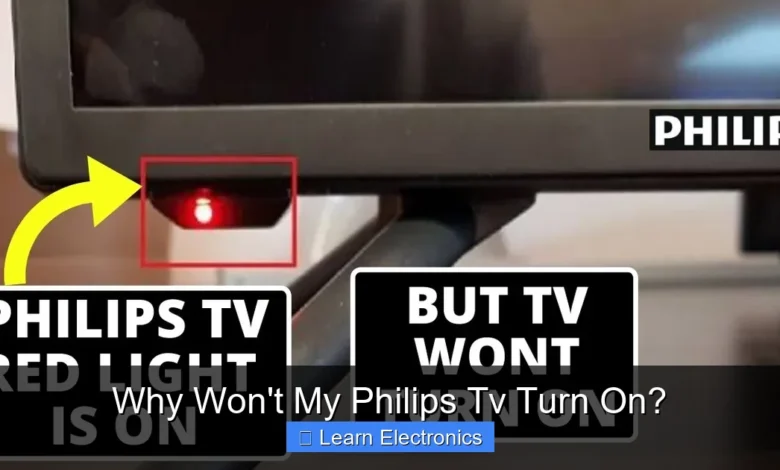
Why Won’t My Philips TV Turn On? often boils down to simple power issues, remote control glitches, or more complex internal component failures. This comprehensive guide will help you methodically troubleshoot common problems and understand the various factors preventing your display from illuminating. Our approach covers a range of scenarios from basic checks to advanced diagnostics, empowering you to resolve the problem efficiently.
Quick Answers to Common Questions
My Philips TV won’t turn on, is it just the power?
Absolutely, always start with the power! Make sure your Philips TV is securely plugged into a working electrical outlet, and try plugging another device into that same outlet to confirm it’s functional. A loose cord or a dead outlet can be the simplest reason your Philips TV won’t turn on.
I’ve pressed the remote button a hundred times, and my Philips TV still won’t turn on. What now?
Don’t just blame the remote! First, check its batteries. Then, try using the physical power button directly on your Philips TV itself, often found on the back, bottom, or side. This helps you figure out if the remote is faulty or if there’s a deeper issue with your Philips TV’s power.
My Philips TV has a red light on, but it still won’t turn on. What does that mean?
That red light, usually a standby indicator, means your Philips TV is receiving power but isn’t fully booting up. Try performing a “power cycle”: unplug your Philips TV from the wall for at least 5 minutes, then plug it back in. This simple reset can often resolve minor glitches and get your Philips TV to turn on.
📑 Table of Contents
- Basic Power Supply Checks
- Remote Control and On-Board Button Issues
- External Device Interference and Input Problems
- Software Glitches and Firmware Issues
- Internal Hardware Failures: Addressing Why Won’t My Philips TV Turn On
- When to Call a Professional: Advanced Troubleshooting and Repair
- Common Troubleshooting Steps & Symptoms Summary
Basic Power Supply Checks
The most frequent reason a television fails to power on is related to its power supply. Before diving into complex troubleshooting, always start with the basics to rule out simple oversights.
Power Cord and Outlet Verification
- Check the Power Cord: Ensure the power cord is securely plugged into both the back of your Philips TV and the electrical outlet. A loose connection is a surprisingly common culprit. Inspect the cord for any visible damage, such as fraying or cuts, which could indicate a faulty cable. If damage is present, replacing the cord might be necessary.
- Test the Outlet: Plug another device, like a lamp or phone charger, into the same electrical outlet your TV uses to confirm the outlet is receiving power. If the other device doesn’t work, the issue is with your outlet, circuit breaker, or home’s electrical system, not the TV. Try a different outlet known to be functional.
Surge Protectors and Power Strips
Many users plug their TVs into surge protectors or power strips. While these devices offer protection, they can also be a point of failure:
- Reset or Bypass: Check if the surge protector has a reset button and press it. Sometimes, a protector trips to prevent damage. If the TV still doesn’t turn on, try plugging the Philips TV directly into a wall outlet, bypassing the surge protector or power strip entirely. A faulty surge protector can prevent any connected device from receiving power.
- Overload: Ensure the power strip isn’t overloaded with too many high-power devices, which can cause it to trip or malfunction.
Resetting the TV’s Power Cycle
A simple power cycle can often resolve minor internal glitches. This technique is often overlooked but surprisingly effective for various electronic devices.
- Unplug your Philips TV from the wall outlet.
- Press and hold the power button on the TV itself (not the remote) for 30-60 seconds. This helps drain any residual power from the capacitors.
- Release the power button and wait another 1-2 minutes.
- Plug the TV back into the outlet.
- Attempt to turn on the TV using either the remote or the onboard power button.
Remote Control and On-Board Button Issues
If your Philips TV isn’t responding, the problem might not be with the television itself but with how you’re trying to turn it on.
Battery Check and Replacement
The remote control is often the first point of interaction. Weak or dead batteries are a common cause of an unresponsive TV.
- Replace Batteries: Always start by replacing the batteries in your Philips remote control with fresh ones. Ensure they are inserted with the correct polarity (+/-).
- Clean Contacts: Occasionally, battery contacts can corrode. Gently clean the metal contacts in the remote’s battery compartment using a cotton swab dipped in rubbing alcohol, then let it dry completely.
Remote Control Signal Interference
Sometimes, the remote is fine, but its signal isn’t reaching the TV. Obstructions or other devices can interfere.
- Clear Line of Sight: Ensure there’s a clear line of sight between your remote and the TV’s infrared (IR) sensor. Remove any objects blocking the path.
- Test with Camera: You can test if your remote is sending a signal by pointing it at a smartphone camera (most digital cameras work). Press a button on the remote; you should see a faint light flash on your phone’s screen if the IR emitter is working.
- Other Remotes: Ensure no other remote controls or devices are accidentally sending conflicting signals.
Testing On-Board Power Button
If the remote doesn’t work, try turning the TV on using the physical power button located on the television itself. This button is typically on the side, bottom, or back of the unit. If the TV powers on using the on-board button but not the remote, the issue is likely with the remote control or its receiver on the TV, rather than the TV’s core power functions.
External Device Interference and Input Problems
Modern TVs are often connected to numerous external devices. Sometimes, one of these peripherals can cause the television to appear unresponsive or prevent it from powering on correctly.
Disconnecting Peripherals
A connected device, especially one that is malfunctioning, can sometimes interfere with the TV’s startup sequence, making it seem like the Philips TV won’t turn on.
- Unplug All Devices: Disconnect all HDMI cables, USB devices, soundbars, game consoles, streaming sticks, and any other peripherals from your Philips TV.
- Attempt Power On: With only the power cord connected, try to turn the TV on. If it powers on successfully, plug in your devices one by one, testing the TV’s functionality after each connection, to identify the problematic peripheral.
Checking Input Sources
While less common for a TV not to turn on at all, sometimes a TV might power on but display a blank screen if it’s stuck on an incorrect input or if the input signal is faulty.
- Cycle Inputs: If your TV appears to turn on (e.g., a power light flashes, or you hear a startup sound but no picture), try pressing the “Input” or “Source” button on your remote or the TV itself to cycle through available inputs.
- Check Cables: Ensure all HDMI and other input cables are securely connected at both ends (TV and external device). Try swapping cables with known good ones if you suspect a faulty cable.
Software Glitches and Firmware Issues
Like any smart device, a Philips TV relies on its internal software (firmware) to function. Occasionally, software glitches can prevent the TV from starting up correctly or displaying a picture.
Performing a Factory Reset (If Accessible)
A factory reset can resolve deep-seated software issues by returning the TV to its original factory settings. This should only be attempted if you can get the TV to power on temporarily, or if there’s a specific button combination for a “cold reset” that works even when the display is off.
- Consult Manual: Refer to your Philips TV’s user manual for specific instructions on how to perform a factory reset. The method varies by model.
- Data Loss: Be aware that a factory reset will erase all personalized settings, installed apps, and user data. You’ll need to set up the TV again from scratch.
Checking for Firmware Updates
Outdated or corrupted firmware can lead to instability. If your TV shows any sign of life (e.g., logo appears, sound but no picture), checking for updates might be a solution.
- Connect to Internet: If possible, ensure your TV is connected to the internet.
- Navigate to Settings: Go to the TV’s settings menu (usually under “Support” or “About TV”) and look for “Software Update” or “Firmware Update.”
- Install Updates: Follow the on-screen prompts to download and install any available updates. Ensure you do not power off the TV during the update process, as this can brick the device.
Internal Hardware Failures: Addressing Why Won’t My Philips TV Turn On
When external checks and software solutions fail, the problem often lies with internal hardware components. Diagnosing these issues typically requires more technical expertise and can be costly to repair.
Power Supply Board (PSU) Malfunctions
The Power Supply Unit is responsible for converting the AC power from your wall outlet into the various DC voltages needed by the TV’s internal components. It’s a very common point of failure when a TV won’t turn on.
- Symptoms: Completely dead TV (no lights, no sound), or clicking sounds without powering on.
- Diagnosis: A technician would typically inspect the PSU for blown capacitors (bulging tops) or burnt components. Replacing the entire board is often more cost-effective than component-level repair for an average user.
Main Board Problems
The main board (also known as the motherboard or logic board) is the “brain” of your TV, controlling all its functions, including video processing, audio, and input management.
- Symptoms: TV stuck on a logo, intermittent power issues, no picture but sound, or complete failure to power on.
- Diagnosis: This is harder to diagnose without specialized tools. Often, a faulty main board can mimic symptoms of a faulty PSU or backlight.
Backlight Issues (Sound but No Picture)
If your Philips TV produces sound, and perhaps the power indicator light is on, but there’s no picture, you might have a backlight failure.
- Symptoms: TV turns on, has sound, but the screen remains dark (you might see a faint image with a flashlight).
- Diagnosis: The LED backlight strips inside the LCD panel can fail. This is a common issue and can sometimes be repaired by replacing individual LED strips, though it requires disassembling the panel.
Fuses and Capacitors
Within the PSU or on the main board, specific components like fuses can blow to protect the circuit, or capacitors can fail over time. A blown fuse often indicates a deeper problem within the circuit, rather than being the root cause itself.
When to Call a Professional: Advanced Troubleshooting and Repair
After exhausting the user-friendly troubleshooting steps, you might reach a point where professional assistance is required. It’s important to know when to stop your DIY efforts to prevent further damage.
Assessing Your Comfort Level
Opening up a television involves working with high voltage components and delicate electronics. If you’re not comfortable with electronics repair, soldering, or disassembling complex devices, it’s best to seek expert help. Attempting repairs without the necessary skills can lead to electric shock, further damage to the TV, or even voiding your warranty.
Contacting Philips Support or a Certified Technician
If your Philips TV is still under warranty, contact Philips customer support immediately. Attempting to open or repair the TV yourself will almost certainly void the warranty. Even if out of warranty, Philips support might offer diagnostic advice or repair services.
- Provide Details: When contacting support or a technician, be prepared to describe the symptoms in detail, including what troubleshooting steps you’ve already taken.
- Model and Serial Number: Have your TV’s exact model number and serial number ready, usually found on a sticker on the back of the unit.
- Repair vs. Replacement: For older or less expensive Philips TV models, the cost of professional repair might approach or exceed the cost of a new television. A technician can help you weigh the options.
Common Troubleshooting Steps & Symptoms Summary
Here’s a quick reference table summarizing common issues and their typical solutions for a Philips TV not powering on.
| Symptom | Potential Cause | Recommended Action |
|---|---|---|
| TV completely dead (no lights, no sound) | No power to unit, faulty power cord, tripped surge protector, PSU failure | Check outlet/cord, bypass surge protector, power cycle TV. If none, suspect PSU. |
| TV won’t respond to remote | Dead remote batteries, remote signal blocked, faulty remote, TV’s IR receiver issue | Replace remote batteries, test remote with camera, use on-board power button. |
| TV has sound but no picture | Backlight failure, faulty main board, incorrect input source | Cycle inputs, disconnect external devices, perform flashlight test for backlight. |
| TV turns on then immediately off | Overheating, faulty PSU, main board issue, short circuit | Power cycle, check for ventilation. Requires professional diagnosis. |
| TV stuck on Philips logo | Software glitch, firmware corruption, main board failure | Power cycle, factory reset (if accessible), check for firmware updates. |
A Philips TV that won’t turn on can be a frustrating experience, but many issues have straightforward solutions. By systematically working through basic power checks, remote control diagnostics, external device isolation, and software resets, you can often pinpoint and resolve the problem yourself. Remember to prioritize safety, especially when dealing with electrical components. If the problem persists after trying these methods, consulting a professional technician is the wisest course of action to get your beloved Philips television back in working order.
Frequently Asked Questions
Is my Philips TV properly plugged in and receiving power?
First, ensure the power cord is securely plugged into both the TV and a working wall outlet. Try plugging another device into the same outlet to confirm it’s active, or use a different outlet altogether. A loose connection or dead outlet is a very common reason for a Philips TV not turning on.
Could a faulty remote control or dead batteries be preventing my Philips TV from turning on?
Yes, try replacing the batteries in your remote control first. You should also attempt to power on the Philips TV using the physical power button on the TV itself, which is often located on the back, bottom, or side, to rule out a remote issue.
What does the standby light on my Philips TV indicate if it’s not turning on?
Observe the standby light on your Philips TV. If it’s completely off, it might indicate no power is reaching the unit. If it’s blinking in a pattern, this could be an error code, and consulting your Philips TV’s manual can help interpret specific blinking sequences to diagnose the problem.
How can I perform a power cycle or reset on my Philips TV if it won’t turn on?
Unplug your Philips TV from the power outlet and wait for at least 60 seconds. While unplugged, press and hold the TV’s power button for about 15-20 seconds to discharge any residual power. Then, plug the TV back in and try to turn it on normally.
Could a connected external device be preventing my Philips TV from starting up properly?
Sometimes, a faulty or incompatible external device can interfere with your Philips TV’s startup process. Disconnect all external devices such as HDMI cables, USB drives, and soundbars from your Philips TV. Then, attempt to power on the TV again to see if it resolves the issue.
As an Amazon Associate, I earn commission from qualifying purchases.