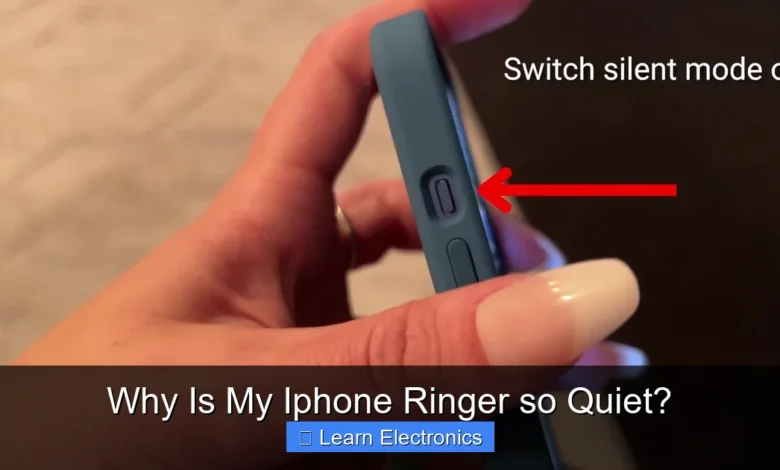
Why Is My iPhone Ringer so Quiet? This common frustration often stems from a mix of software configurations, accidental button presses, or even minor hardware obstructions. Understanding the various factors contributing to a low ringer volume can help you quickly restore your iPhone’s audible alerts.
Many users encounter this problem, finding that their device’s notifications are barely perceptible. Fortunately, most instances of a quiet iPhone ringer can be resolved through simple troubleshooting steps, ensuring you don’t miss important calls or messages again.
Quick Answers to Common Questions
My iPhone ringer is super quiet, even with the volume turned up. What’s going on?
Your iPhone’s ringer volume might be set independently from your media volume! Head to Settings > Sounds & Haptics and ensure “Change with Buttons” is toggled OFF, then slide the “Ringer and Alerts” volume all the way to the right. This often solves a quiet iPhone ringer issue instantly!
Could a physical switch or a setting like Do Not Disturb be silencing my calls?
Absolutely! First, check the physical Silent/Ring switch on the side of your iPhone; if you see an orange indicator, it’s on silent. Also, confirm you haven’t accidentally enabled Do Not Disturb or a Focus Mode, as these will silence your incoming calls and make your iPhone ringer seem quiet.
My ringer is still quiet sometimes, even with everything else checked. Any other tricks?
Don’t forget about “Attention Aware Features”! If enabled under Face ID & Passcode, your iPhone might subtly lower the ringer volume when it detects you’re looking at the screen. Try disabling it to see if your iPhone ringer consistently returns to full volume.
📑 Table of Contents
Checking Basic iPhone Ringer and Alert Settings
Before diving into more complex solutions, it’s crucial to verify your iPhone’s fundamental sound settings. Often, a quiet ringer is simply due to an easily overlooked adjustment.
The Side Silent Switch and Volume Buttons
Your iPhone has a physical Silent/Ring switch located on the left side, above the volume buttons. If the switch is toggled towards the back of the phone (with an orange indicator showing), your device is in silent mode, and all ringer and alert sounds will be muted. Flipping this switch back towards the screen will enable your ringer.
Beyond the silent switch, the volume buttons on the left side control the ringer and alert volume when you’re not on a call or playing media. Press the “Volume Up” button repeatedly to increase the ringer’s loudness. You’ll see a volume indicator on the screen, often showing “Ringer” or “Volume.”
Ringer and Alerts Volume Slider
Even if the physical buttons are set correctly, an internal setting might be overriding your desired volume. Navigate to Settings > Sounds & Haptics (or Settings > Sounds on older iOS versions). Here, you’ll find the “Ringer and Alerts” slider. Ensure this slider is moved to the right, increasing the volume. There’s also a toggle option labeled “Change with Buttons.” If this is off, your volume buttons will only control media volume, and you’ll have to adjust the ringer volume manually via the slider in settings.
Do Not Disturb and Focus Modes
iOS includes powerful features like Do Not Disturb and Focus Modes designed to help you concentrate by silencing notifications. If these modes are active, your iPhone’s alerts will be muted or sent to your Notification Center silently. To check:
- Swipe down from the top-right corner (or up from the bottom on older models) to open Control Center.
- Look for the crescent moon icon (Do Not Disturb) or a specific Focus mode icon (e.g., a car for Driving Focus, a bed for Sleep Focus).
- Tap the icon to disable the active mode or adjust its settings. You can also manage these modes comprehensively under Settings > Focus. Ensure no Focus mode is inadvertently silencing your calls and messages.
Software and System-Related Causes for a Low Ringer
Sometimes, the issue isn’t a direct setting but a temporary software glitch or an outdated operating system. Addressing these can often resolve an inexplicably quiet iPhone ringer.
Restarting Your iPhone
The classic IT solution often works wonders for iPhones too. A simple restart can clear temporary bugs, refresh system processes, and reinitialize hardware connections. To restart:
- For iPhones with Face ID: Press and hold the side button and either volume button until the power-off slider appears.
- For iPhones with a Home button: Press and hold the side (or top) button until the power-off slider appears.
- Drag the slider, then wait for your device to turn off completely.
- Press and hold the side (or top) button again until you see the Apple logo.
Updating iOS
Outdated software can sometimes lead to unexpected behavior, including audio problems. Apple regularly releases iOS updates that include bug fixes, performance improvements, and security patches. Keeping your iPhone’s operating system up to date can resolve known issues that might be affecting your alert sounds. To check for updates, go to Settings > General > Software Update.
App-Specific Volume Settings
While less common for the main ringer, some communication apps (like WhatsApp, Messenger, or custom VoIP apps) have their own in-app notification sound settings that might conflict with the system volume. Check the notification settings within individual apps if you notice the issue is confined to alerts from specific applications.
Hardware Factors Affecting Your iPhone’s Loudness
Even if all your software settings are correct, physical obstructions or damage can significantly reduce your iPhone’s audible alerts.
Speaker Grille Obstruction
Your iPhone’s bottom speaker grilles (and sometimes the earpiece speaker for call audio) can accumulate lint, dust, and debris over time. This buildup can partially or completely block the sound output, making your alerts sound muffled or extremely quiet. Carefully inspect the speaker grilles. Using a soft, dry toothbrush or a can of compressed air (used gently and at a distance) can help dislodge any debris. Avoid using sharp objects, which could damage the speaker membrane.
Protective Cases and Screen Protectors
While essential for protection, some third-party cases or poorly fitted screen protectors can inadvertently block the speaker grilles or the earpiece. Try removing your iPhone case and any screen protector to see if the sound volume improves. If it does, consider a different case design or a more accurately fitted screen protector.
Liquid Damage or Physical Impact
If your iPhone has recently been exposed to water or suffered a significant drop, the internal speaker components might be damaged. Water can corrode connections or damage the speaker membrane, leading to distorted or extremely low sound. Similarly, a hard impact can dislodge internal components. If you suspect liquid or physical damage, it might be time for professional assessment.
Understanding Attention Aware Features
Modern iPhones with Face ID incorporate an “Attention Aware Features” setting that can affect how your device handles alerts. If enabled, your iPhone will check if you’re looking at it before playing a loud alert.
How Attention Aware Works
When “Attention Aware Features” is turned on and your iPhone detects that you are looking at the screen, it automatically lowers the volume of ringers and alerts. This is designed to be helpful, preventing unnecessarily loud sounds if you’re already paying attention to your device. However, it can sometimes be mistaken for an actual volume problem.
Disabling Attention Aware Features
If you prefer your iPhone’s alerts to always be at full volume regardless of whether you’re looking at the screen, you can disable this feature. Go to Settings > Face ID & Passcode, enter your passcode, and then toggle off “Attention Aware Features.” Test your ringer again to see if this resolves the issue.
Advanced Troubleshooting and Reset Options
If the above steps haven’t resolved your quiet alert problem, you might need to consider more intensive software troubleshooting. This involves resetting settings or, as a last resort, restoring your iPhone.
Resetting All Settings
This option resets all your iPhone’s settings—including network settings, keyboard dictionary, home screen layout, location settings, and privacy settings—to their factory defaults, but it does not erase your data. This can resolve conflicts or corrupted settings that might be causing your alert issues. Go to Settings > General > Transfer or Reset iPhone > Reset > Reset All Settings. You’ll need to reconfigure some preferences afterward.
Backup and Restore
As a final software troubleshooting step, you can perform a full backup of your iPhone and then restore it to factory settings. This process essentially reinstalls a fresh copy of iOS. You can then restore your data from your backup. This is a comprehensive solution for deep-seated software glitches but is time-consuming. It’s crucial to have a recent backup to iCloud or your computer before attempting this. Always restore as new first to check if the issue persists before restoring from a backup, as the backup itself might contain the problematic setting.
When Professional Help is Needed for Your Quiet Ringer
Despite all your troubleshooting efforts, some problems are beyond a user’s ability to fix. Recognizing when to seek professional assistance can save you time and prevent further damage.
Diagnosing Persistent Hardware Issues
If you’ve tried all the software and basic hardware checks, and your iPhone’s alerts remain stubbornly quiet, it’s highly likely to be a hardware failure. This could involve a faulty speaker component, a damaged audio IC chip, or internal wiring issues. These require specialized tools and expertise to diagnose and repair.
Contacting Apple Support
If your iPhone is still under warranty or covered by AppleCare+, contacting Apple Support is your best next step. They can run diagnostics, advise on repair options, or arrange for a service appointment at an Apple Store or authorized service provider. Even if your device isn’t under warranty, Apple or an authorized repair center can provide a reliable diagnosis and repair estimate.
Here’s a quick summary of common causes and their primary solutions:
| Common Cause | Primary Solution |
|---|---|
| Silent Switch engaged | Toggle the physical side switch |
| Low Ringer Volume setting | Adjust slider in Settings > Sounds & Haptics |
| Do Not Disturb / Focus Mode active | Disable via Control Center or Settings > Focus |
| Attention Aware Features enabled | Turn off in Settings > Face ID & Passcode |
| Speaker grille blocked | Clean speaker grilles carefully |
| Software glitch | Restart your iPhone or update iOS |
| Hardware damage (water/impact) | Seek professional repair |
Resolving an iPhone ringer that’s too quiet often involves a systematic check of both software settings and hardware components. By following these steps, most users can successfully restore their iPhone’s full alert volume, ensuring they don’t miss those critical calls and notifications again. If all else fails, remember that professional help is available to get your device back in top acoustic shape.
Frequently Asked Questions
Why is my iPhone ringer volume suddenly low?
Check your physical volume buttons on the side of your iPhone, ensuring they are pressed to increase the ringer volume. You can also adjust the “Ringer and Alerts” slider in Settings > Sounds & Haptics to your desired level, making sure “Change with Buttons” is enabled if you want to use the side buttons for this.
Could the physical mute switch be causing my iPhone ringer to be quiet?
Yes, the physical Ring/Silent switch on the left side of your iPhone can easily be toggled to silent mode. If you see an orange indicator, your iPhone is set to silent, and calls will only vibrate. Flip the switch back towards the screen to enable the ringer.
Why is my iPhone ringer not working even though the volume is up?
Your iPhone might be in Do Not Disturb mode or another Focus mode, which silences calls and notifications. Swipe down from the top-right corner to open Control Center and check for a crescent moon icon or a custom Focus mode that might be active, then disable it.
My iPhone ringer gets quiet when I look at my phone, why?
This is likely due to Attention Aware Features, which uses Face ID to detect if you’re looking at your phone. If it senses your attention, it will automatically lower the volume of alerts and ringtones. You can disable this feature in Settings > Face ID & Passcode, then scroll down to “Attention Aware Features.”
What else can I check if my iPhone ringer is still quiet?
Ensure your iPhone’s software is up to date by checking Settings > General > Software Update. If the issue persists, try restarting your iPhone, which can often resolve minor software glitches. As a last resort, you might consider backing up and restoring your iPhone.
As an Amazon Associate, I earn commission from qualifying purchases.