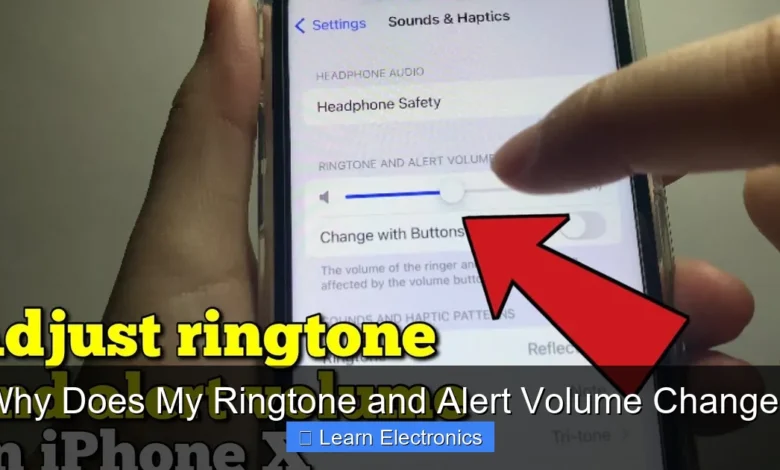
Why Does My Ringtone and Alert Volume Change? This common frustration typically stems from a combination of operating system features, app-specific settings, user profiles, or potential hardware and software glitches. Understanding these underlying mechanisms can help you identify and resolve the unexpected volume fluctuations on your device.
Often, these changes are not random but a result of automated system behaviors or intentional user configurations that have been forgotten or overlooked. Pinpointing the exact cause requires a systematic approach to diagnostics and settings review.
Quick Answers to Common Questions
Why does my ringtone and alert volume change unexpectedly sometimes?
Often, your phone’s “Do Not Disturb” or “Focus” modes are the culprits, as they can automatically mute or lower your **ringtone and alert volume** based on schedules or locations you’ve set. Give your sound settings a quick peek!
Can connecting to other devices affect my phone’s volume?
Yes, definitely! When you connect to Bluetooth headphones, car systems, or smart speakers, they can introduce their own volume controls, making your phone’s **ringtone and alert volume change** to match the connected device. Try adjusting the volume on both your phone and the connected accessory.
Do certain apps cause my volume to fluctuate?
They certainly can! Some apps, particularly those for media or communication, might have their own independent volume settings or temporarily override your system’s **ringtone and alert volume**. If you notice a change after using a specific app, check its in-app settings.
📑 Table of Contents
- Dynamic Volume Adjustments and Adaptive Sound Features
- App-Specific Volume Settings and Conflicts
- Scheduled Do Not Disturb Modes and Silent Profiles
- Hardware Issues and Accessory Connections
- Software Bugs and Glitches: Why Does My Ringtone and Alert Volume Change?
- Advanced Troubleshooting for Ringtone and Alert Volume Changes
Dynamic Volume Adjustments and Adaptive Sound Features
Modern smartphones and tablets are equipped with sophisticated features designed to enhance user experience, and this often includes dynamic sound management. These intelligent systems can automatically adjust your device’s audio output based on various factors, sometimes leading to unexpected changes in ringtone and alert volume.
Attention-Aware Features
Many devices, particularly newer models, include “Attention-Aware” features. For instance, Apple’s iPhones use the TrueDepth camera to detect if you are looking at the screen. If it senses your attention, it might automatically lower the volume of alerts and ringtones, assuming you’ve already noticed the notification. This prevents jarringly loud sounds when you’re actively using the device. While convenient, it can make it seem as though the volume is randomly decreasing. Android devices often have similar features under different names, utilizing proximity sensors or front cameras to detect user presence.
- Practical Tip: Check your device’s accessibility or Face ID settings (iOS) or smart sensing features (Android) to see if attention-aware or similar features are enabled. Disabling them will ensure alerts play at a consistent, set volume.
Sound Check and Volume Limiters
Audio playback settings can also influence how your device handles sound. Features like “Sound Check” (on iOS for music playback) aim to normalize audio levels across different songs, but sometimes similar algorithms can subtly affect overall system audio. More directly, some operating systems allow you to set a maximum volume limit, which might inadvertently cap your ringtone volume if activated, especially after an update or a reset. Users might also set custom volume profiles that activate under specific conditions, causing the perceived volume to fluctuate.
- Practical Tip: Review your device’s sound and haptics settings. Look for any volume limiters, headphone safety features, or sound normalization options that might be active. Ensure these are configured to your preference or disabled if you seek maximum, consistent volume.
App-Specific Volume Settings and Conflicts
It’s a common misconception that all sound on your phone is controlled by a single master volume. In reality, modern mobile operating systems manage several distinct volume channels, and individual applications can exert significant control over their own audio output, sometimes overriding system-wide preferences.
Media Volume vs. Ringtone Volume
Your device typically has separate sliders for Ringtone/Notification volume, Media volume (for music, videos, games), Alarm volume, and sometimes even Call volume. If you’ve been watching a video or playing a game, the media volume might be set low, but this shouldn’t affect your ringtone. However, some apps, particularly communication or social media apps, might have their own in-app notification volume settings that differ from the system ringtone volume. If you receive an alert from such an app, its volume might not match your system-wide setting.
- Practical Tip: When experiencing volume issues, go to your device’s main Sound & Haptics or Sound & Vibration settings. Independently adjust each volume slider (Ringtone, Media, Alarm, Call) to ensure they are all at your desired levels.
Third-Party App Interference
Certain third-party applications can interfere with or even take control of your device’s sound settings. Apps designed for custom ringtones, volume boosters, automation (like Tasker on Android), or security apps can sometimes inadvertently or intentionally alter volume levels. A recently installed app could be the culprit if the issue started shortly after its installation.
- Practical Tip: If the problem started after installing a new app, try uninstalling it to see if the issue resolves. Review the permissions granted to your apps, especially those related to “modify system settings” or “access notification settings.”
Scheduled Do Not Disturb Modes and Silent Profiles
One of the most frequent reasons for fluctuating ringtone and alert volume is the activation of automated modes designed to manage notifications and interruptions. These features are incredibly useful for productivity and rest but can be confusing if you forget they’re enabled.
Automated Do Not Disturb (DND)
Both iOS and Android offer robust “Do Not Disturb” or “Focus” modes that can be scheduled to activate at certain times (e.g., during work hours, bedtime), when you’re at specific locations, or when engaged in particular activities. When DND is active, it typically silences all calls and alerts, or routes them silently to your notifications center, making it seem like your volume has dropped to zero.
- Practical Tip: Check your device’s DND or Focus settings. Ensure there are no active schedules or conditions that are unintentionally muting your phone. You can usually find these under “Settings > Do Not Disturb” (Android) or “Settings > Focus” (iOS).
Location-Based and Custom Profiles
Many Android devices, and some third-party apps, allow for the creation of custom sound profiles. These profiles can automatically adjust ringtone, notification, and media volumes based on your location (e.g., quiet at work, loud at home), connection to specific Wi-Fi networks, or even time of day. While convenient for managing your device’s behavior in different environments, they can be a source of confusion if not regularly reviewed.
- Practical Tip: Look for any “Sound Profiles,” “Modes and Routines” (Samsung), or similar automation features in your settings. Ensure that no active profile is inadvertently changing your volume settings.
Hardware Issues and Accessory Connections
Sometimes, the problem isn’t purely software-related. Physical components or connected accessories can also play a role in why your device’s ringtone and alert volume seems to change erratically.
Physical Button Malfunctions
The physical volume buttons on your device can wear out over time or become stuck. If a volume down button is partially stuck or intermittently shorting, it might register presses even when you’re not touching it, causing the volume to decrease without your direct interaction. Similarly, the mute switch on iPhones, if dirty or faulty, might engage silently.
- Practical Tip: Gently clean around your volume buttons and mute switch to dislodge any dirt or debris. Test the buttons thoroughly by pressing them multiple times. If the issue persists, a hardware fault might require professional repair.
Headphone and Bluetooth Quirks
Your device might sometimes mistakenly believe it’s connected to headphones or a Bluetooth audio device, even if nothing is physically paired or connected. When this happens, it routes all audio, including ringtones, to the phantom accessory, resulting in silence or very low volume from the device’s internal speakers. A dirty headphone jack can also cause this misdetection.
Conversely, if you connect to a Bluetooth device (like a car stereo or headphones) that has its own volume control, disconnecting might not always revert your phone’s volume to its previous state, or the phone might default to a lower safe volume level.
- Practical Tip: Check your Bluetooth settings and disconnect any paired devices that are not currently in use. Clean your headphone jack with a non-conductive tool like a toothpick or compressed air. Test your phone’s ringtone volume after restarting it without any accessories connected.
Software Bugs and Glitches: Why Does My Ringtone and Alert Volume Change?
Like any complex electronic system, smartphones are susceptible to software bugs, operating system glitches, or even corrupted settings files. These can manifest as erratic behavior, including unpredictable volume fluctuations.
Recent OS Updates
A newly installed operating system update, while generally beneficial, can sometimes introduce unforeseen bugs that affect system functions, including volume control. A common scenario is when an update resets certain preferences or changes how volume settings are managed in the background. While patches usually follow to fix such issues, they can be a temporary nuisance.
- Practical Tip: After an update, always check all your sound and notification settings. If many users report similar issues post-update, consider reporting it to the manufacturer or waiting for a hotfix update. A simple device restart can also resolve many post-update quirks.
Corrupted Settings Files and Memory Issues
Over time, system files, including those that store your preferences for volume and notifications, can become corrupted. This can happen due to app crashes, incomplete installations, or general system instability. Additionally, low available memory or an excessive number of background processes can sometimes lead to the operating system struggling to maintain consistent settings, resulting in unexpected changes.
- Practical Tip: Regularly clearing your device’s cache (especially app caches that are known to be problematic) can help. If the issue is persistent and you suspect corrupted system files, backing up your data and performing a factory reset might be a drastic but effective solution.
Advanced Troubleshooting for Ringtone and Alert Volume Changes
When basic checks don’t resolve the issue, a more methodical approach to diagnosing and fixing the problem is needed. Understanding how to isolate the cause is key.
Differentiating Volume Sliders
It’s crucial to understand that your device manages several distinct audio streams. When troubleshooting, always ensure you are adjusting the correct volume slider. On Android, pressing a physical volume button often brings up a small popup with quick access to all volume types (Ringtone, Media, Alarm). On iOS, physical buttons primarily control media/call volume, and ringtone volume is adjusted separately in Settings unless “Change with Buttons” is enabled.
- Practical Tip: Familiarize yourself with all the volume control options in your device’s Sound & Haptics settings. Manually adjust each one to your desired level and then test with a phone call or notification.
Resetting Volume Settings
If you’ve exhausted other options, sometimes resetting specific settings can help. On Android, you can try resetting app preferences (Settings > Apps > Menu > Reset app preferences), which will reset all disabled apps, notification restrictions, default apps, background data restrictions, and permission restrictions. This won’t delete app data but can clear conflicting settings. For more persistent issues, a network settings reset or even a full factory reset (after backing up data) can often resolve deep-seated software conflicts.
- Practical Tip: Before resorting to a factory reset, try a soft reset (restarting your phone). For more persistent issues, investigate app preference resets or network settings resets as they are less intrusive than a full factory reset.
Here’s a quick summary of common causes and their primary solutions:
| Common Cause | Description | Primary Solution |
|---|---|---|
| Attention-Aware Features | Device lowers volume when you look at the screen. | Disable “Attention Aware” in Accessibility/Face ID settings. |
| Scheduled DND/Focus Modes | Automated silent periods based on time, location, or activity. | Check and adjust DND/Focus schedules in settings. |
| App-Specific Volume Controls | Individual apps override system notification volume. | Review in-app notification settings; check app permissions. |
| Headphone/Bluetooth Glitches | Device mistakenly thinks it’s connected to an audio accessory. | Disconnect/forget Bluetooth devices, clean headphone jack. |
| Physical Button Malfunction | Stuck or faulty volume buttons or mute switch. | Clean buttons; test responsiveness; seek professional repair if needed. |
| Software Bugs/Updates | OS glitches or issues introduced by recent updates. | Restart device; check for new updates; reset app preferences. |
Understanding why your ringtone and alert volume changes requires a systematic approach. By methodically checking your device’s settings, reviewing app behaviors, and considering potential hardware issues, you can often pinpoint the exact cause of the fluctuations. Most of these issues are solvable with simple adjustments within your phone’s settings, restoring consistent and predictable audio levels for your calls and notifications.
Frequently Asked Questions
Why does my ringtone and alert volume change unexpectedly?
This can happen due to various reasons, from software glitches to specific app settings. Often, an application might take temporary control of your volume settings, or a system update could have altered default behaviors, leading to these automatic adjustments.
Can specific apps cause my ringtone and alert volume to change?
Yes, many apps can modify your volume settings. Apps like “Do Not Disturb” schedulers, sound profile managers, or even some media apps might temporarily adjust your volumes based on their function or scheduled events you’ve set up.
Are there device settings that automatically adjust my ringtone and alert volume?
Absolutely. Features like “Do Not Disturb” mode, “Bedtime Mode,” or even certain “Driving Mode” settings on your phone are designed to silence or lower volumes automatically. These modes aim to prevent interruptions during specific times or activities without manual intervention.
How can I prevent my ringtone and alert volume from changing on its own?
Start by reviewing your phone’s sound and notification settings for any scheduled changes or active modes that might be enabled. Additionally, check the permissions of recently installed apps to see if any have “modify system settings” access, as this could be a culprit.
Could a software bug be responsible for my ringtone and alert volume changing?
While less common, software bugs or corrupt system files can sometimes lead to erratic volume behavior. Ensuring your device’s operating system is up to date can often resolve such underlying software issues, bringing stability back to your volume controls.
Why do my ringtone and alert volumes sometimes change temporarily, then revert?
This often points to an app or system feature that temporarily overrides your settings, such as a scheduled “Do Not Disturb” period or an app like Google Maps announcing directions. Once the temporary condition ends, your volume levels typically return to their previous, manually set state.
As an Amazon Associate, I earn commission from qualifying purchases.