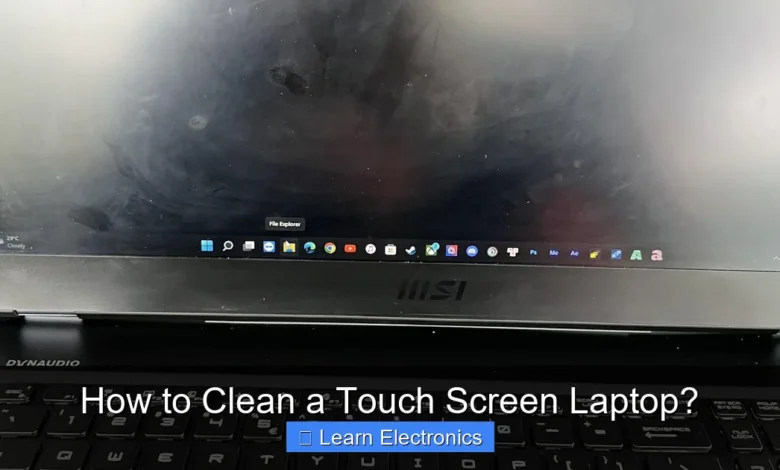
Learning How to Clean a Touch Screen Laptop properly involves powering it down completely and using the right materials to ensure a pristine display. This approach guarantees both aesthetic appeal and optimal functionality without risking damage to sensitive components.
Adopting this method for maintaining your device’s interactive screen is essential for its longevity and responsiveness. A clean screen enhances user experience and prevents smudges from interfering with touch commands.
Quick Answers to Common Questions
What’s the best way to clean a touch screen laptop without damaging it?
The safest and most effective way to clean a touch screen laptop is to gently wipe it with a clean, dry microfiber cloth specifically designed for electronics. If stubborn smudges remain, slightly dampen the cloth with distilled water or a dedicated, alcohol-free screen cleaner, never spraying directly onto the screen.
Can I use household cleaners or paper towels to clean my touch screen?
Please don’t! Harsh household cleaners containing alcohol or ammonia can strip the protective coatings on your screen, and abrasive materials like paper towels can cause permanent scratches. Always opt for a soft microfiber cloth and a gentle, screen-specific solution.
What’s the right technique to clean a touch screen laptop effectively?
First, power down and unplug your laptop to prevent accidental touches and see grime better. Then, using your microfiber cloth, wipe in gentle, consistent strokes in one direction (top to bottom or side to side) to effectively lift dust and smudges when you clean your touch screen laptop.
📑 Table of Contents
- Why Proper Touch Screen Cleaning Matters
- Gathering Your Cleaning Arsenal: The Right Tools
- The Step-by-Step Process for How to Clean a Touch Screen Laptop
- Maintaining a Clean Screen: Preventative Measures
- Common Mistakes to Avoid When Cleaning Your Touch Screen
- Quick Reference: Cleaning Solutions and Materials
- Conclusion
Why Proper Touch Screen Cleaning Matters
A touch screen laptop is a marvel of modern technology, offering intuitive interaction and vivid displays. However, its very nature makes it prone to smudges, fingerprints, dust, and grime. Over time, these can accumulate, degrading the screen’s clarity and responsiveness. More concerning, improper cleaning can lead to permanent damage, such as scratches, anti-glare coating degradation, or even internal component failure if liquids seep in.
Regular and correct screen maintenance is crucial for several reasons:
- Enhanced User Experience: A clean screen offers crisp visuals and accurate touch recognition, making navigation and content consumption a pleasure.
- Longevity of the Device: Protecting the screen from abrasive particles and harsh chemicals extends its lifespan and preserves its factory finish.
- Hygiene: Touchscreens can harbor bacteria and germs. Proper cleaning contributes to a more hygienic computing environment.
- Maintains Resale Value: A well-maintained device, especially its display, holds its value better if you decide to upgrade in the future.
Understanding the impact of both neglecting your screen and using the wrong cleaning methods is the first step towards successful display care.
Gathering Your Cleaning Arsenal: The Right Tools
Before you begin the process of cleaning your touch screen laptop, it’s essential to assemble the correct tools. Using inappropriate materials can cause irreversible damage to your screen’s delicate surface or its protective coatings. Always opt for gentle, non-abrasive items.
Recommended Cleaning Supplies
- Microfiber Cloths: These are paramount. Use only high-quality, lint-free microfiber cloths specifically designed for optics or electronics. They are soft enough not to scratch and effective at trapping dust and oils. Always have at least two—one for damp cleaning and one for drying.
- Distilled Water: This is the safest liquid for cleaning. Unlike tap water, distilled water contains no minerals or impurities that could leave streaks or deposits on your screen.
- Specialized Screen Cleaner (Optional): If distilled water isn’t cutting it for stubborn grime, opt for a screen cleaner formulated specifically for electronics. Look for solutions that are alcohol-free, ammonia-free, and abrasive-free. Always spray the cleaner onto your cloth, never directly onto the screen.
- Compressed Air or Blower Brush: Useful for removing loose dust and debris from the screen and around the bezel before wiping, preventing scratches from larger particles.
What to Absolutely Avoid
Knowing what not to use is just as important as knowing what to use. Steer clear of these items:
- Paper Towels or Tissues: These are too abrasive and can scratch your screen, even if they feel soft to the touch. They also leave behind lint.
- Rough Fabrics: Any cloth that isn’t microfiber, such as cotton shirts, bath towels, or old rags, can scratch the screen.
- Window Cleaners (Windex, etc.): These often contain ammonia, alcohol, or other harsh chemicals that can strip away anti-glare coatings or damage the touch-sensitive layer.
- Household Cleaners: Sprays for countertops, furniture polish, or abrasive cleaners are a definite no-go.
- Rubbing Alcohol or Solvents: While some screen cleaners contain minimal alcohol, pure rubbing alcohol is too strong and can damage screen coatings.
The Step-by-Step Process for How to Clean a Touch Screen Laptop
Follow these meticulous steps to ensure a thorough and safe cleaning of your interactive display. Patience and gentleness are key.
Preparation is Key
- Power Down Completely: The very first and most critical step is to turn off your laptop and unplug it from any power source. Cleaning a live screen can cause accidental inputs, and the dark screen makes smudges more visible.
- Disconnect Peripherals: Unplug any USB devices, external monitors, or chargers to prevent accidental damage or interference.
- Initial Dust Removal: Use compressed air or a soft blower brush to gently clear away loose dust, crumbs, or larger particles from the screen surface and around the edges of the display. Hold the can upright and use short bursts to avoid moisture buildup. Skip this step if you don’t have these tools, but never wipe a screen with large particles present.
Gentle Cleaning Application
- Dampen Your Microfiber Cloth: Lightly dampen one microfiber cloth with distilled water. It should be barely moist, not dripping wet. Wring out any excess liquid to prevent it from seeping into the laptop’s internal components. If using a screen cleaner, spray it onto the cloth, not directly onto the screen.
- Wipe Gently: Start at one corner of the screen and wipe in a straight, consistent direction across the entire surface. Avoid circular motions, as these can spread grime and leave streaks. Apply only light pressure. For stubborn smudges, a slightly firmer but still gentle press may be needed, but never scrub.
- Address Edges and Corners: Carefully clean the edges and corners where dust often accumulates. Fold your cloth to get into tighter spots, but avoid pushing liquid into the bezel.
Drying and Finishing Touches
- Buff with Dry Cloth: Immediately after cleaning with the damp cloth, take a second, completely dry microfiber cloth and gently buff the screen in a similar straight motion. This removes any residual moisture and ensures a streak-free finish.
- Inspect the Screen: Once dry, inspect the screen under good lighting for any remaining smudges or streaks. If necessary, repeat steps 5-7 using fresh sections of your cloths.
- Power On: Once you are satisfied with the cleanliness and the screen is completely dry, you can power your laptop back on.
Maintaining a Clean Screen: Preventative Measures
Prevention is always better than cure. By adopting good habits, you can significantly reduce the frequency of deep cleaning your touch screen laptop.
Practical Tips for Daily Care
- Use a Screen Protector: A high-quality screen protector can shield your display from minor scratches, smudges, and even reduce glare. It also makes cleaning easier, as you’re cleaning the protector, not the actual screen.
- Handle with Care: Whenever possible, avoid touching the screen directly with your fingers, especially if they’re oily or dirty. Use a stylus if your laptop supports one.
- Close Your Laptop Gently: Ensure no objects (like pens or papers) are on the keyboard before closing the lid, as they can press against and damage the screen.
- Clean Your Hands: Before using your laptop, especially the touchscreen, make a habit of washing or sanitizing your hands. This dramatically reduces the transfer of oils and germs.
- Keep Food and Drinks Away: Spills are the nemesis of electronics. Maintain a safe distance between your laptop and consumables.
- Store Properly: When not in use, store your laptop in a clean, dust-free environment. A laptop sleeve or bag can protect it from dust and accidental bumps during transport.
Essential Tips on How to Clean a Touch Screen Laptop Effectively
Beyond the regular cleaning, these insights will help you maintain your screen’s performance and appearance over time. Always prioritize gentle methods and specialized products to ensure the longevity of your device.
Common Mistakes to Avoid When Cleaning Your Touch Screen
Even with the best intentions, some common errors can inadvertently harm your touch screen display. Being aware of these pitfalls can save you from costly repairs or irreversible damage.
- Spraying Cleaner Directly onto the Screen: This is a major no-no. Liquid can seep into the bezel, causing damage to internal components or leaving permanent streaks. Always spray onto the microfiber cloth first.
- Using Excessive Liquid: A damp cloth is good; a soaking wet one is not. Too much moisture can cause electrical shorts or water damage.
- Applying Too Much Pressure: Over-enthusiastic scrubbing can scratch the screen, damage pixels, or even affect the touch digitizer beneath the surface. Gentleness is key.
- Using Abrasive Materials: As mentioned, paper towels, tissues, and rough cloths can scratch the delicate screen surface and its anti-glare coating.
- Cleaning While Powered On: Not only is this a safety risk for the laptop’s electronics, but it also makes it harder to see and remove smudges effectively. Always power down first.
- Using Harsh Chemicals: Ammonia, alcohol, window cleaner, and household solvents can strip protective coatings, cause discoloration, or degrade the touch functionality of your screen.
Quick Reference: Cleaning Solutions and Materials
This table provides a quick overview of what to use and what to avoid when caring for your touch screen laptop.
| Category | Recommended for Touch Screens | Absolutely Avoid |
|---|---|---|
| Cloths | High-quality, lint-free microfiber cloths | Paper towels, tissues, rough rags, cotton shirts |
| Liquids | Distilled water, specialized alcohol-free/ammonia-free screen cleaner | Tap water, window cleaner, rubbing alcohol, ammonia, household solvents |
| Tools | Compressed air (short bursts), soft blower brush | Abrasive sponges, brushes with stiff bristles |
| Application Method | Spray liquid onto cloth, wipe gently in one direction | Spray liquid directly onto screen, scrub aggressively, circular motions |
Conclusion
Maintaining a clean touch screen laptop is an effortless task when you employ the right tools and techniques. By following the comprehensive steps outlined—from powering down your device and choosing appropriate cleaning materials to using gentle, deliberate motions—you can ensure your display remains crystal clear and fully responsive. Avoiding common mistakes like using harsh chemicals or abrasive cloths is equally vital to prevent irreversible damage.
Regular maintenance not only enhances your daily computing experience but also extends the lifespan of your valuable device. Make these practices a habit, and your touch screen laptop will continue to perform flawlessly, presenting content vividly and responding to your touch with precision for years to come.
Frequently Asked Questions
What’s the best way to clean my touch screen laptop?
The safest and most effective method is to use a clean, soft microfiber cloth, ideally one designed for electronics. For light smudges, a dry cloth is sufficient; for more stubborn marks, slightly dampen the cloth with distilled water or a specialized screen cleaner.
What cleaning products should I avoid using on my laptop screen?
Never use harsh chemicals like alcohol, ammonia-based cleaners (e.g., window cleaner), acetone, or abrasive materials like paper towels or tissue paper. These can strip protective coatings, scratch the screen, or damage the display over time.
How often should I clean my touch screen laptop to keep it pristine?
It’s a good practice to wipe down your touch screen laptop weekly for light dust and fingerprints, or whenever you notice significant smudges. Regular gentle cleaning prevents grime buildup and keeps your screen looking clear and responsive.
How do I remove stubborn fingerprints and smudges from my screen?
First, power off your laptop. Then, gently wipe the affected area with a microfiber cloth slightly dampened with distilled water or an appropriate screen cleaner. Use light, circular motions and avoid pressing too hard to prevent damage.
Should I use the same method to clean the rest of my touch screen laptop’s body?
For the laptop’s chassis, keyboard, and trackpad, a microfiber cloth and a mild electronics cleaning solution are generally safe. You can also use compressed air to clear debris from keyboard crevices before wiping.
What specific tools or materials do I need to clean my laptop screen effectively?
You will need a supply of high-quality, lint-free microfiber cloths. Additionally, either distilled water or a specifically formulated, alcohol-free, ammonia-free electronics screen cleaner is recommended for a thorough clean.
As an Amazon Associate, I earn commission from qualifying purchases.