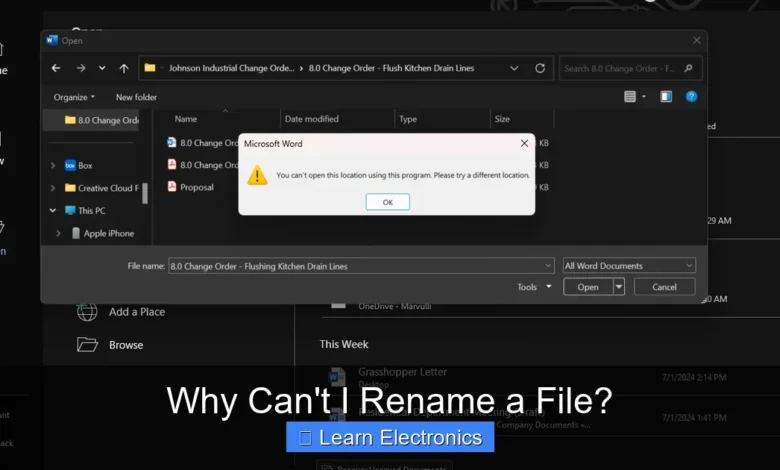
You find yourself asking, “Why Can’t I Rename a File?” The immediate answer often lies in simple reasons: the file is currently in use, you lack the necessary permissions, its name contains invalid characters, or there’s an underlying file system issue. Understanding these common culprits is the first step in resolving this frustrating roadblock.
Prime Day Pick
Limited-time Prime Day price. Check current discount on Amazon.
This challenge frequently arises across all computing environments, from everyday document management to complex electronic design automation projects. Identifying the specific cause allows you to apply the correct technique to regain control over your digital assets.
Quick Answers to Common Questions
Why Can’t I Rename a File When It’s Open?
Most operating systems prevent you from renaming a file while it’s actively in use by an application to avoid data corruption. Simply close the program using the file, and you should then be able to rename a file without any issues.
Prime Day Pick
Limited-time Prime Day price. Check current discount on Amazon.
What Does “Access Denied” Mean When I Try to Rename a File?
An “access denied” message usually means you don’t have the necessary permissions to rename a file in that specific location or directory. You might need administrator privileges or to contact your system administrator to change the file permissions.
Prime Day Pick
Limited-time Prime Day price. Check current discount on Amazon.
Can Special Characters Prevent Me From Renaming a File?
Absolutely! Operating systems have specific rules about which characters are allowed in file names. Avoid using characters like `\ / : * ? ” < > |` as they are typically reserved and will prevent you from being able to rename a file successfully.
📑 Table of Contents
- File in Use or Locked: A Primary Reason Why Can’t I Rename a File?
- Permissions and Ownership: Another Perspective on Why Can’t I Rename a File?
- Invalid Characters and Reserved Names
- File System Integrity and Corruption
- Cloud Synchronization and Network Conflicts
- Security Software and Malware Interference
- Conclusion
File in Use or Locked: A Primary Reason Why Can’t I Rename a File?
One of the most frequent reasons you might encounter an inability to rename a file is that another program, process, or even the operating system itself is actively using or has locked the file. When a file is open, even in the background, the system often prevents modifications to ensure data integrity and prevent corruption.
Active Applications and Background Processes
Many common applications hold exclusive locks on files while they are open. For instance, if you have a datasheet open in a PDF viewer, a circuit diagram in an EDA tool, or a firmware file in your development environment (IDE), you won’t be able to rename it until that application releases the lock. Sometimes, an application might crash but leave a lingering process that still holds the file lock, even if the application window is no longer visible.
- Identifying the Culprit: On Windows, you can use Task Manager (Ctrl+Shift+Esc) to look for running applications or background processes. In some cases, third-party tools like Process Explorer can help identify which specific process has a file open. On macOS, Activity Monitor serves a similar purpose.
- Resolution: The simplest solution is to close all applications that might be accessing the file. If that doesn’t work, try restarting your computer, which will clear all open processes and release any stubborn file locks. For embedded system developers, this often means ensuring your IDE has fully closed the project or firmware file.
System Files and Open Directories
Operating systems also protect certain files vital to their operation. You cannot rename system files or folders that are currently in use by Windows, macOS, or Linux. Similarly, if you are attempting to rename a folder while its contents are being accessed or if it’s the current working directory of a command prompt or terminal window, the operating system will block the action.
- Resolution: Avoid attempting to rename system-critical files. For directories, ensure no command-line interfaces are pointed to that location and no programs are running from within it.
Permissions and Ownership: Another Perspective on Why Can’t I Rename a File?
File permissions are a fundamental security mechanism in modern operating systems. They dictate who can read, write, execute, or delete a file or folder. If you lack the necessary “write” permission, the system will prevent you from renaming the file, as renaming is considered a modification.
Understanding File Permissions
Permissions are typically assigned based on user accounts, user groups, and sometimes the system itself. For example, on a shared laboratory computer, you might have full access to your own project folder but only read access to system-wide libraries or other students’ directories. If a file is marked as “read-only,” you will be unable to rename it without first changing its attributes.
- Checking Permissions (Windows): Right-click the file or folder, select “Properties,” then navigate to the “Security” tab. Here you can see which users and groups have what level of access. If you are an administrator, you might be able to change these permissions, though caution is advised.
- Checking Permissions (macOS/Linux): Right-click (or Ctrl-click) the item, select “Get Info” (macOS) or use the
ls -lcommand in Terminal (Linux) to view permissions. - Resolution: If you have administrative privileges, you can modify the file’s permissions to grant yourself “write” access. If not, you’ll need to contact the system administrator or the file’s owner. For files on external drives or network shares, ensure the drive itself doesn’t have restrictive permissions or is not mounted as read-only.
Ownership Issues
Beyond permissions, the concept of file ownership can also be a factor. The creator of a file or folder is typically its owner and has ultimate control over its permissions. If you are not the owner, even with certain permissions, you might face restrictions, especially in environments with strict security policies.
- Resolution: Taking ownership of a file or folder (if you have administrative rights) is a more advanced step but can resolve persistent permission issues.
Invalid Characters and Reserved Names
Operating systems have specific rules for what characters are allowed in file and folder names. Certain symbols have special meanings within the file system or command line and are therefore prohibited. Additionally, some names are reserved for system use and cannot be applied to user files.
Forbidden Characters
Common characters that cannot be used in file names across most operating systems include:
/(forward slash)\(backslash):(colon)*(asterisk)?(question mark)"(double quote)<(less than sign)>(greater than sign)|(pipe)
While spaces are generally allowed, leading or trailing spaces can sometimes cause issues in older systems or specific applications. Special characters like emojis or certain Unicode characters might also not be fully supported by all software or file systems.
Reserved System Names
Operating systems reserve certain names for internal devices or functions. Attempting to name a file or folder with one of these reserved words will result in an error.
On Windows, some common reserved names include:
CON(console)PRN(printer)AUX(auxiliary device)NUL(null device)COM1,COM2,COM3, etc. (serial ports)LPT1,LPT2, etc. (parallel ports)
These names are treated as devices, not files, by the operating system. If you try to create a file named “CON.txt,” the system will likely fail or treat it as an attempt to write to the console.
Resolution: When renaming, ensure your new file name contains only alphanumeric characters, hyphens, and underscores. Avoid special characters and check for reserved names, especially if you’re working with files that originated on different operating systems or older systems.
File System Integrity and Corruption
Underlying issues with the file system itself can also prevent file renaming. A corrupted file system, bad sectors on the storage drive, or an unexpected power loss during a file operation can lead to inconsistencies that block standard file actions.
Disk Errors and Bad Sectors
Physical damage to a hard drive or solid-state drive can result in “bad sectors” where data cannot be reliably stored or read. If the file you’re trying to rename resides on such a sector, the operating system might struggle to complete the operation.
- Symptoms: Slow performance, freezing applications, files disappearing, or persistent errors when trying to access or modify certain files.
- Resolution: Use built-in disk checking tools. On Windows, this is
chkdsk(Check Disk); on macOS, Disk Utility’s “First Aid” function; and on Linux,fsck. These tools can scan for and sometimes repair file system errors. Regular backups are crucial when dealing with potential drive issues.
Unexpected Shutdowns and Inconsistent States
Sudden power outages or forced shutdowns can leave the file system in an inconsistent state, where directory entries or file allocation tables are incorrect. This can make the system “think” a file is still in use or inaccessible, even when it isn’t.
Resolution: Running a disk check (as mentioned above) is often the first step to correct such inconsistencies. In severe cases, particularly with removable media like SD cards frequently used in electronics projects, reformatting the drive might be necessary, but this will erase all data, so ensure backups are made.
Cloud Synchronization and Network Conflicts
In our increasingly connected world, files are often synchronized across multiple devices via cloud services or stored on network shares. These environments introduce their own set of complexities that can interfere with renaming.
Cloud Service Locks (OneDrive, Dropbox, Google Drive)
When files are actively being synchronized by services like OneDrive, Dropbox, or Google Drive, these services might place temporary locks on the files. This is to ensure data integrity during upload or download and to prevent conflicts if the file is modified simultaneously on different devices.
- Symptoms: Rename attempts often result in “file in use” errors, even if no local application is accessing it. The cloud service icon might show a “syncing” status.
- Resolution: Wait for the synchronization process to complete. If the issue persists, try pausing the cloud service’s synchronization, renaming the file, and then resuming sync. For critical files in electronics development, consider temporarily moving them out of the synced folder, renaming, and then moving them back.
Network Drive and Shared Folder Issues
Files stored on network drives or shared folders can be subject to the permissions of the network server, potential network latency, or concurrent access by other users. If another user on the network has the file open or if the network connection is unstable, renaming might fail.
- Resolution: Ensure no other users are accessing the file. Verify your network permissions and connection stability. In some cases, disconnecting and reconnecting to the network drive can resolve temporary glitches.
Security Software and Malware Interference
Your computer’s security measures, while essential, can sometimes be overzealous and prevent legitimate file operations. Malicious software can also intentionally lock files to prevent their deletion or modification.
Antivirus and Security Software
Antivirus programs, anti-malware suites, and even some firewalls actively monitor file access. If a file is suspected of being malicious, or if the security software is in the process of scanning or quarantining it, it might place a temporary lock on the file, preventing you from renaming it.
- Symptoms: Renaming attempts fail without a clear reason, or an antivirus pop-up appears.
- Resolution: Temporarily disable your antivirus software (with caution, and only if you are certain the file is safe and from a trusted source) and try renaming the file. Remember to re-enable it immediately afterward. You might also check your antivirus logs for any related events.
Malware and Ransomware
Malicious software, particularly ransomware, is designed to lock files or encrypt them, often preventing any modification or renaming until a ransom is paid. If you suspect malware, the file renaming issue could be a symptom of a larger security compromise.
- Symptoms: Unexplained file locks, files with unusual extensions, or ransom notes appearing on your desktop.
- Resolution: Immediately run a full system scan with reputable antivirus and anti-malware tools. If ransomware is detected, follow expert advice for removal and data recovery; attempting to rename files directly will likely be ineffective and could exacerbate the problem.
Conclusion
The frustration of encountering the message, “Why Can’t I Rename a File?” is a common experience, but rarely without a solvable cause. From mundane reasons like a file being open in the background to more complex issues like file system corruption or security conflicts, understanding the potential culprits is key.
By systematically checking for open applications, verifying user permissions, ensuring valid file names, inspecting disk health, managing cloud synchronization, and considering security software interference, you can typically identify and resolve the problem. Regular file hygiene, careful attention to naming conventions, and robust backup practices will further minimize these occurrences, allowing you to maintain efficient control over your digital workspace, whether you’re working on a complex electronics project or simply organizing your documents.
Frequently Asked Questions
Why can’t I rename a file if it’s currently open or in use?
Operating systems typically lock files that are actively being used by an application to prevent data corruption or conflicts. You will need to close the program (such as a word processor, image editor, or media player) that has the file open before you can successfully rename it.
What if I don’t have the necessary permissions to rename a file?
Lack of proper permissions is a common reason why you can’t rename a file, especially on shared network drives or system folders. Your user account might not have the required write access for that specific file or directory. You may need to contact your system administrator or adjust the file’s security settings if you have administrator privileges.
Are there specific characters or names I can’t use when I rename a file?
Yes, certain characters are reserved by the operating system and cannot be used in file names, such as `\ / : * ? ” < > |`. Additionally, operating systems like Windows have reserved device names (e.g., CON, PRN, AUX) that you cannot use to rename a file, even with file extensions.
Why does it say a file with that name already exists when I try to rename a file?
This message appears when you are trying to rename a file to a name that is already being used by another file or folder in the exact same directory. File names must be unique within a given folder. To resolve this, you’ll need to choose a different name that isn’t currently in use.
Can a file’s “read-only” attribute prevent me from renaming a file?
Yes, if a file is marked with the “read-only” attribute, the operating system might prevent any modifications, including renaming it. To resolve this, right-click the file, select “Properties,” and uncheck the “Read-only” box under the General tab, then click “Apply” or “OK.”
As an Amazon Associate, I earn commission from qualifying purchases.