Why Is My Ringer Off on My iPhone? is often due to a simple oversight, such as the physical mute switch being engaged or an active Focus Mode. Understanding these common culprits can help quickly restore your device’s audible notifications. This guide delves into the various reasons your iPhone might be silent and provides clear steps to diagnose and resolve the issue.
From hardware switches to advanced software configurations, several factors can prevent your iPhone from ringing. Identifying the precise cause is the first step towards ensuring you don’t miss important calls or alerts again.
Quick Answers to Common Questions
Did you accidentally flip the Silent switch?
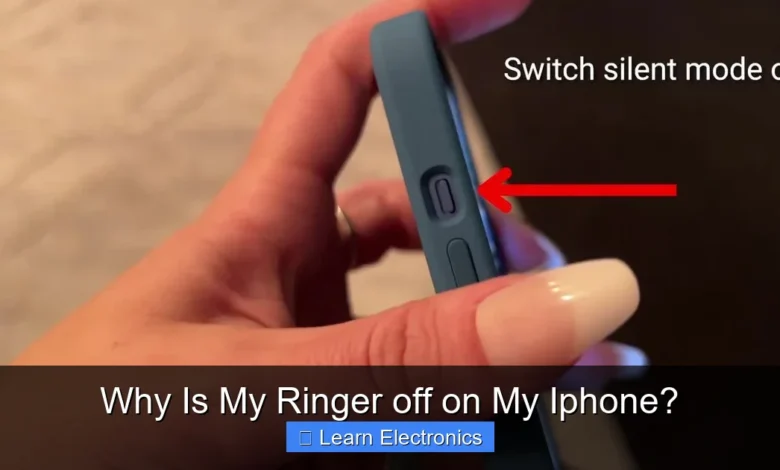
This is often the number one culprit when you’re wondering “Why Is My Ringer Off on My iPhone?”. Check the small physical switch on the left side of your iPhone, above the volume buttons – if you see an orange line, your phone is in silent mode.
Is Do Not Disturb or a Focus Mode currently active?
Software settings can also silence your phone! Swipe down from the top-right corner to open Control Center and see if a Focus icon (like a crescent moon for Do Not Disturb) is lit up. Tap it to toggle off any active silencing modes.
Could your ringer volume simply be turned all the way down?
Sometimes the simplest answer is the right one! Try pressing the “Volume Up” button on the left side of your iPhone, or head to Settings > Sounds & Haptics to adjust the “Ringer and Alerts” slider to your desired level. This is a common reason why your ringer is off.
📑 Table of Contents
Understanding the Silent Mode Switch and Focus Modes
One of the most frequent reasons an iPhone’s ringer is off relates to its physical mute switch or the more recent software-driven Focus Modes. Both mechanisms are designed to silence your device, but operate differently.
The Physical Mute Switch
Every iPhone features a small physical switch on its left side, above the volume buttons. This is the Ring/Silent switch. When pushed towards the back of the phone, an orange indicator becomes visible, signifying that your iPhone is in silent mode. In this state, incoming calls, alerts, and most notifications will vibrate rather than ring.
- How to Check: Simply slide the switch back and forth. If you see the orange indicator, the phone is muted. Slide it towards the screen to re-enable the ringer.
- Common Oversight: It’s surprisingly easy to accidentally nudge this switch when putting your iPhone in a pocket or bag.
Introduction to Focus Modes
Introduced with iOS 15, Focus Modes are advanced versions of the old “Do Not Disturb” feature. They allow users to customize notification settings based on their activity (e.g., Work, Sleep, Personal, Driving). When a Focus Mode is active, it can silence calls and notifications from specific apps or contacts.
- How to Check: Swipe down from the top-right corner of your screen (for Face ID iPhones) or swipe up from the bottom (for Touch ID iPhones) to open Control Center. Look for the Focus button (often represented by a crescent moon or a custom icon). If a Focus Mode is active, its icon will be highlighted.
- Disabling Focus: Tap the active Focus Mode to turn it off immediately, or tap the button to see a list of available modes and manage their settings.
Specific Focus Mode Configurations
Each Focus Mode can be configured independently, allowing for granular control over who can contact you and which apps can send notifications. You might have a Focus Mode set to automatically activate based on time, location, or even when opening certain apps.
- Customization: Go to Settings > Focus to review and modify your existing Focus Modes. Check the “Allowed Notifications” section for both “People” and “Apps” within each mode.
- Scheduled Activation: Be aware of any schedules you may have set. For example, a “Sleep” Focus might automatically turn on at bedtime, silencing your phone until morning.
Understanding Software Settings: Why Is My Ringer Off on My iPhone?
Beyond the physical switch and Focus Modes, several software settings within iOS can directly impact whether your iPhone rings. These settings offer fine-tuned control over audio and notification preferences.
Ringtone and Volume Settings
It might seem obvious, but sometimes the simplest settings are overlooked. Your iPhone’s ringer volume can be independently adjusted from media volume, and your selected ringtone might be silent.
- Ringer Volume: Go to Settings > Sounds & Haptics (or Sounds on older iOS versions). Ensure the “Ringer and Alerts” slider is not set to the lowest level. You can also toggle “Change with Buttons” to allow the physical volume buttons to control ringer volume, but this is off by default.
- Ringtone Selection: Within the “Sounds & Haptics” settings, tap “Ringtone” and ensure a standard, audible ringtone is selected. If “None” or a custom silent ringtone is chosen, your phone won’t make a sound.
Do Not Disturb and Scheduled Silencing
While largely replaced by Focus Modes, older iOS versions and certain configurations might still utilize the standalone “Do Not Disturb” feature. This feature can be set to silence calls and alerts for a specific period or when the device is locked.
- Checking Do Not Disturb: In Control Center, look for the crescent moon icon. If it’s highlighted, Do Not Disturb is active. Tap it to disable.
- Schedules: Navigate to Settings > Focus > Do Not Disturb to check for any active schedules that might be automatically turning it on.
Unknown Callers and Silence Junk Callers
iOS includes features designed to reduce unwanted calls, which can inadvertently silence legitimate calls from numbers not in your contacts.
- Silence Unknown Callers: Go to Settings > Phone > Silence Unknown Callers. If this setting is enabled, calls from numbers not in your contacts, recent outgoing calls, or Siri Suggestions will go straight to voicemail and won’t ring your phone.
- Spam Call Blocking: Third-party apps for blocking spam calls can also sometimes misidentify legitimate calls, sending them to voicemail. Check the settings of any such apps you have installed.
Bluetooth and Audio Output Considerations
Your iPhone is smart about routing audio. If it detects an external audio device, it might automatically send call audio and ringtones there, making your phone appear silent when it’s not.
Connected Bluetooth Devices
If your iPhone is connected to Bluetooth headphones, a car’s infotainment system, a smart speaker, or even a hearing aid, the ringtone might be playing through that device instead of your iPhone’s internal speaker.
- How to Check: Swipe down for Control Center and tap the Bluetooth icon to see if it’s active. Long-press the Bluetooth icon to expand options and see connected devices.
- Troubleshooting: Try turning Bluetooth off entirely for a moment. If your ringer then works, the issue was with a connected device. You can then re-enable Bluetooth and manually disconnect devices one by one to find the culprit.
Audio Output Priority
When multiple audio output options are available (e.g., internal speaker, Bluetooth device, AirPlay speaker), your iPhone prioritizes them. Sometimes, it might stick to an external output even after disconnection.
- Manually Switching Output: During an incoming call (if you can catch it before it goes to voicemail) or playing any audio, tap the AirPlay icon (a triangle with circles at the base) in Control Center or within the Phone/Music app. Ensure “iPhone” is selected as the audio output.
- Forgotten Connections: Ensure you’ve properly disconnected from car systems or public Wi-Fi speakers that might hijack your audio output.
Potential Software Glitches and Solutions
Even with all settings appearing correct, occasional software glitches can cause your iPhone’s ringer to malfunction. These are usually resolved with simple troubleshooting steps.
Restarting Your iPhone
A simple restart can often resolve temporary software bugs that might be interfering with your ringer. This clears out temporary memory and reinitializes core processes.
- How to Restart:
- For iPhones with Face ID: Press and hold the side button and either volume button until the power off slider appears. Drag the slider, then wait for your phone to turn off. Press and hold the side button again to turn it back on.
- For iPhones with a Home button: Press and hold the side (or top) button until the power off slider appears. Drag the slider, then wait for your phone to turn off. Press and hold the side (or top) button again to turn it back on.
Checking for iOS Updates
Outdated software can sometimes lead to unexpected behavior. Apple regularly releases iOS updates that include bug fixes and performance improvements.
- How to Update: Go to Settings > General > Software Update. If an update is available, download and install it. Ensure your iPhone is connected to Wi-Fi and has sufficient battery charge or is connected to power.
Resetting All Settings
If individual setting adjustments don’t work, resetting all iPhone settings to their factory defaults can often resolve deeper software conflicts without erasing your personal data.
- How to Reset: Go to Settings > General > Transfer or Reset iPhone > Reset > Reset All Settings. You will need to re-enter Wi-Fi passwords and reconfigure preferences like wallpaper, but your photos, apps, and other data will remain untouched.
Hardware Issues and Professional Repair
While less common, hardware malfunctions can also be the cause of a silent iPhone. If software troubleshooting doesn’t work, consider these possibilities.
Diagnosing a Faulty Mute Switch
The physical Ring/Silent switch can sometimes become stuck, dirty, or internally damaged, leading to inconsistent behavior or a permanent silent mode.
- Visual Inspection: Check if the switch feels loose, wobbly, or if debris is lodged around it. Use a soft brush or compressed air to gently clean the area.
- Intermittent Issues: If the ringer works sometimes but not others, or only after wiggling the switch, it could indicate a mechanical fault.
Speaker Malfunctions
If your iPhone’s internal speaker is damaged, it won’t produce any sound, even if all software settings are correct. This can affect ringtones, media playback, and speakerphone calls.
- Testing the Speaker: Try playing music or a video. If you hear no sound (even with volume turned up), the speaker might be the problem. Also, try making a call and using speakerphone. If you can’t hear the other party, it further points to a speaker issue.
- Water Damage: Exposure to liquids can often damage internal speakers.
When to Seek Professional Help for Why Is My Ringer Off on My iPhone?
If you’ve exhausted all software troubleshooting steps and suspect a hardware problem, it’s time to contact Apple Support or visit an authorized service provider. Attempting to repair hardware issues yourself can cause further damage and void your warranty.
- Warranty Check: Check your iPhone’s warranty status.
- Expert Diagnosis: Professionals have specialized tools to diagnose and repair hardware components accurately and safely.
Troubleshooting Steps and Quick Fixes
To help you systematically troubleshoot the issue, here’s a quick reference table outlining common problems and their solutions.
| Problem Description | Likely Cause | Quick Fix/Troubleshooting Step |
|---|---|---|
| No sound during incoming calls, but vibrations work. | Physical mute switch engaged. | Flip the physical Ring/Silent switch on the left side (no orange visible). |
| Calls go straight to voicemail without ringing. | Focus Mode (e.g., Do Not Disturb) active or Silence Unknown Callers. | Check Control Center for active Focus Modes, or go to Settings > Phone > Silence Unknown Callers. |
| Ringer volume seems low or non-existent. | Ringer and Alerts volume set too low. | Go to Settings > Sounds & Haptics and adjust “Ringer and Alerts” slider. |
| Ringer plays through another device (car, headphones). | Connected Bluetooth device or AirPlay. | Turn off Bluetooth in Control Center, or ensure “iPhone” is selected as audio output. |
| Intermittent or unpredictable silent behavior. | Software glitch or faulty mute switch. | Restart iPhone. If persistent, check for iOS updates or consider a hardware issue. |
| No sound from any source (calls, music, videos). | Speaker malfunction. | Test speaker with music. If no sound, contact support for hardware repair. |
A Systematic Approach
When your iPhone isn’t ringing, it’s best to follow a systematic approach. Start with the easiest checks (mute switch, Control Center) and progressively move to more involved software settings or hardware diagnostics. This method ensures you cover all bases and efficiently pinpoint the reason for the silence.
Conclusion
Discovering why your iPhone’s ringer is off can be a source of frustration, leading to missed calls and important notifications. However, by understanding the various settings and potential issues discussed—from the straightforward physical mute switch and advanced Focus Modes to subtle software configurations and rare hardware failures—you are well-equipped to diagnose and resolve the problem. Most often, the solution is a quick toggle or a minor setting adjustment.
Regularly reviewing your iPhone’s sound and notification settings can prevent future occurrences. If you’ve tried all the troubleshooting steps and your device remains stubbornly silent, don’t hesitate to seek professional assistance to restore your iPhone’s full functionality. Ensuring your ringer is always working means staying connected and never missing what truly matters.
Frequently Asked Questions
Why is my iPhone ringer off when it’s not muted in settings?
A common culprit is the physical Ring/Silent switch located on the left side of your iPhone. Ensure this switch is toggled towards the front of your phone, so you don’t see the orange indicator.
Could Do Not Disturb or a Focus mode be silencing my iPhone ringer?
Yes, Focus modes like Do Not Disturb can prevent your iPhone from ringing for incoming calls and notifications. Swipe down from the top-right corner to open Control Center and check if any Focus mode icon (like a crescent moon) is active, then tap it to turn it off.
My iPhone ringer is off, how do I check the volume?
Even if not on silent, your ringer volume might be turned all the way down. You can adjust the ringer volume using the volume buttons on the side of your iPhone when you’re not on a call, or by going to Settings > Sounds & Haptics and adjusting the “Ringer and Alerts” slider.
What if my iPhone ringer is off and I’ve tried everything else?
Sometimes a simple software glitch can cause your iPhone ringer to stop working properly. A quick restart of your iPhone can often resolve these minor software issues by refreshing the system.
My iPhone ringer is still off; could it be a deeper issue?
If the above steps don’t fix your iPhone ringer, check your sound settings under Settings > Sounds & Haptics to ensure a ringtone is selected. In rare cases, a hardware issue with the speaker or the silent switch itself might be preventing sound, which might require professional inspection.
As an Amazon Associate, I earn commission from qualifying purchases.