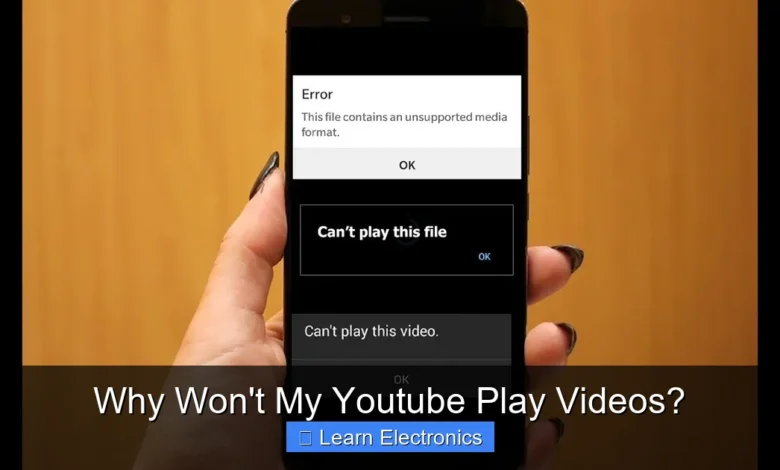
Why Won’t My YouTube Play Videos? Often, the issue stems from a combination of internet connectivity problems, browser conflicts, outdated software, or device-specific settings. Addressing these common areas can quickly resolve most video playback failures.
Understanding the root cause is the first step in effective troubleshooting. This process involves a systematic check of your setup, from your network to the application itself.
Quick Answers to Common Questions
Is my internet connection to blame?
Often, the primary reason why your YouTube won’t play videos is a weak or unstable internet connection. Give your router a quick restart or check your Wi-Fi signal strength to see if that’s the culprit!
Could my web browser be the problem?
Absolutely! Sometimes a buildup of browser cache, cookies, or conflicting extensions can stop YouTube from playing videos. Try clearing your browser’s data or switching to an incognito window to test if that resolves it.
What if only some videos aren’t playing?
If you find that most YouTube videos play fine but a specific one doesn’t, it might be due to content restrictions, the video being deleted, or set to private. In these cases, the issue is with the video itself, not your system.
📑 Table of Contents
- Internet Connectivity and Device Health: The Foundation of Playback
- Browser and Software Configurations: Unlocking Smooth Streaming
- YouTube Platform and Content Factors: Beyond Your Control?
- Hardware and System-Level Diagnostics: Deeper Dives
- Advanced Troubleshooting: Why Won’t My YouTube Play Videos?
- Persistent Playback Problems and Next Steps
Internet Connectivity and Device Health: The Foundation of Playback
Before delving into complex solutions, it’s crucial to confirm that your basic setup is sound. Many video playback issues are rooted in unstable internet connections or an overwhelmed device.
Check Your Internet Connection
A weak or inconsistent internet connection is the most frequent culprit behind buffering, low-quality playback, or complete failure to load videos. YouTube streams require a stable data flow. If your connection is sporadic, videos will struggle to play.
- Run a Speed Test: Use a reputable online speed test service (e.g., Speedtest.net) to check your download and upload speeds. Compare this to YouTube’s recommended speeds for various resolutions (e.g., 5 Mbps for HD, 20 Mbps for 4K).
- Reset Your Router/Modem: Power cycle your network hardware. Unplug it for 30 seconds, then plug it back in. This can often resolve temporary network glitches.
- Try a Different Network: If possible, connect your device to another Wi-Fi network or use mobile data to see if the problem persists. If videos play fine on a different network, the issue is with your primary internet service.
- Ethernet vs. Wi-Fi: If you’re on Wi-Fi, try connecting via an Ethernet cable for a more stable connection, especially if you’re experiencing interference or a weak wireless signal.
Device Performance and Resources
Your device’s processing power and available memory play a significant role in handling video streams. An overburdened system can lead to choppy playback or videos refusing to start.
- Close Background Applications: Many open tabs, applications, or background processes can consume CPU and RAM, leaving fewer resources for YouTube. Close unnecessary programs.
- Check for Updates: Ensure your operating system (Windows, macOS, Android, iOS) is up to date. Updates often include performance enhancements and bug fixes that can impact video playback.
- Restart Your Device: A simple restart can clear temporary glitches, refresh system resources, and often resolve minor software conflicts that might be preventing videos from playing.
Browser and Software Configurations: Unlocking Smooth Streaming
Your web browser or the YouTube app itself can be a source of playback problems due to cached data, conflicting extensions, or outdated versions.
Browser Cache and Cookies
Over time, your browser accumulates cached data and cookies, which can become corrupted or outdated, interfering with how websites like YouTube function.
- Clear Browser Cache and Cookies: Go into your browser’s settings and clear its cache and cookies. This removes old data that might be causing conflicts. Be aware this will log you out of most websites.
- Try Incognito/Private Mode: Open YouTube in an incognito or private browsing window. This mode disables extensions and doesn’t use existing cache/cookies, helping to diagnose if the issue is browser-related.
Browser Extensions and Add-ons
While many extensions are helpful, some can interfere with YouTube’s functionality, especially ad blockers or security extensions.
- Disable Extensions: Temporarily disable all browser extensions, particularly ad blockers, VPN extensions, or script blockers. Reload the YouTube page to see if the video plays. If it does, re-enable them one by one to pinpoint the culprit.
- Update Browser: Ensure your web browser (Chrome, Firefox, Edge, Safari) is updated to its latest version. Outdated browsers may lack the necessary codecs or security features for modern web video playback.
Flash Player and HTML5
While YouTube primarily uses HTML5 for video playback now, very old browsers or specific embed configurations might still rely on Flash Player. Ensure your browser supports HTML5 video and that Flash, if present, is updated or properly configured.
- Check HTML5 Compatibility: Modern browsers should support HTML5 by default. If you’re using a very old browser, consider updating it or switching to a newer one.
YouTube Platform and Content Factors: Beyond Your Control?
Sometimes, the problem isn’t on your end but originates from YouTube’s servers, the specific video, or your account settings.
YouTube Server Status
Occasionally, YouTube’s servers may experience outages or maintenance, preventing videos from loading for everyone. While rare, it can happen.
- Check Down Detector or Social Media: Use websites like Down Detector or check social media (e.g., Twitter) to see if other users are reporting similar issues with YouTube.
Video Quality and Playback Settings
Certain video settings can impact playback, especially on slower connections or older hardware.
- Lower Video Quality: Try lowering the video quality setting (e.g., from 1080p to 720p or 480p) by clicking the gear icon on the YouTube player. Lower resolutions require less bandwidth and processing power.
- Disable Autoplay: Sometimes, autoplay functionality can cause conflicts. Try disabling it in your YouTube settings or directly on the video player.
Regional Restrictions or Copyright Issues
Some videos are restricted to specific geographic regions or have copyright claims that prevent them from being played in certain areas or on specific platforms.
- VPN Interference: If you’re using a VPN, try disabling it. While VPNs can bypass regional restrictions, they can also sometimes trigger them inadvertently or cause connection issues.
- Video Availability: It’s possible the video itself has been removed or is restricted. Try playing a different, popular video to confirm if the issue is specific to one video or widespread.
Hardware and System-Level Diagnostics: Deeper Dives
If software and network checks don’t resolve the issue, it might be time to investigate your device’s hardware and system-level configurations, especially if you’re encountering graphical glitches or audio failures.
Graphics Drivers
Outdated or corrupted graphics drivers are a common cause of video playback problems, displaying artifacts, green screens, or preventing videos from starting at all. This applies especially to computers in the “Learn Electronics” category, where graphics hardware is key.
- Update Graphics Drivers: Visit the website of your graphics card manufacturer (NVIDIA, AMD, Intel) and download the latest drivers for your specific model. Install them and restart your computer.
- Roll Back Drivers: If you recently updated your drivers and started experiencing issues, try rolling back to a previous stable version.
Audio Drivers and Hardware
If videos play but without sound, or if sound is distorted, the issue likely lies with your audio setup.
- Check Audio Output: Ensure your speakers or headphones are correctly connected and selected as the default output device in your system settings.
- Update Audio Drivers: Similar to graphics drivers, outdated audio drivers can cause problems. Update them via your device manufacturer’s website or Device Manager (Windows).
- Test Other Audio Sources: Play audio from a different source (e.g., a local music file) to determine if the audio issue is specific to YouTube or system-wide.
Display Settings and Cables
For desktop users, display-related problems can sometimes manifest as playback issues.
- Check Monitor Cables: Ensure your display cables (HDMI, DisplayPort, DVI) are securely connected at both ends. Faulty cables can cause display issues.
- Monitor Refresh Rate: Incorrect refresh rate settings can sometimes lead to stuttering. Ensure your monitor is set to its native refresh rate.
Advanced Troubleshooting: Why Won’t My YouTube Play Videos?
When conventional methods fail, a more systematic and potentially deeper dive into your system’s configurations might be necessary to understand why won’t my YouTube play videos. These techniques involve adjusting network settings or checking system integrity.
Network Configuration Checks
Beyond simply resetting your router, certain network settings on your device can impact how it connects to streaming services.
- Flush DNS Cache: Your computer stores DNS information that can become outdated. Opening Command Prompt (Windows) as administrator and typing
ipconfig /flushdnscan clear this cache. For macOS, open Terminal and typesudo dscacheutil -flushcache; sudo killall -HUP mDNSResponder. - Change DNS Servers: Sometimes, your ISP’s default DNS servers might be slow or unreliable. Switching to public DNS servers like Google DNS (8.8.8.8, 8.8.4.4) or Cloudflare DNS (1.1.1.1, 1.0.0.1) can improve connection stability and speed.
System File Integrity and Malware Scans
Corrupted system files or malware infections can wreak havoc on your computer’s performance, including its ability to play videos.
- Run SFC Scan (Windows): The System File Checker (SFC) tool can repair corrupted Windows system files. Open Command Prompt as administrator and type
sfc /scannow. - Malware Scan: Perform a full scan of your system using reputable antivirus/anti-malware software. Malware can interfere with browser functions and system resources.
Browser Hardware Acceleration
Modern browsers use hardware acceleration to offload graphical tasks to your GPU, improving performance. However, sometimes it can cause conflicts with specific hardware or drivers.
- Toggle Hardware Acceleration: In your browser’s settings (usually under “System” or “Advanced”), find the option for “Use hardware acceleration when available” and try toggling it off or on. Restart the browser after changing the setting.
Persistent Playback Problems and Next Steps
If you’ve systematically worked through the previous steps and videos still won’t play correctly, it’s time to consider external factors or more drastic measures. Understanding these final steps can help resolve even the most stubborn issues.
Test on a Different Device
A crucial diagnostic step is to try playing YouTube videos on a completely different device (e.g., a smartphone, another computer, or a smart TV) using the same internet connection. This helps determine if the issue is specific to your primary device or a broader network/YouTube problem.
- If videos play fine on other devices, the problem is localized to your original device’s hardware or software.
- If videos still don’t play on any device, the issue likely resides with your internet service provider or YouTube’s services themselves.
Browser Reinstallation or Factory Reset
As a last resort for browser-related issues, a full reinstallation might be necessary. For operating system level problems, a factory reset might be considered, but only after backing up all your data.
- Reinstall Browser: Uninstall your web browser completely and then download and install the latest version from its official website. This ensures a clean installation free from corrupted profiles or settings.
- Factory Reset (Caution!): For persistent, system-wide issues on a mobile device or a computer with no other apparent solution, a factory reset might fix deeply embedded problems. Always back up your data before attempting this.
When to Seek Professional Help
If you’ve exhausted all troubleshooting options and the problem persists, it might be time to consult an expert. This is particularly relevant if you suspect hardware failure or complex software conflicts beyond your comfort level.
- Contact Your ISP: If you suspect your internet connection is the root cause, reach out to your Internet Service Provider for support.
- Manufacturer Support: For device-specific issues, contact the support for your computer, phone, or tablet manufacturer.
- Professional Technician: A qualified computer technician can perform in-depth diagnostics and hardware checks that might reveal underlying problems.
Troubleshooting Checklist: Quick Solutions for Playback Issues
Here’s a concise guide to help you quickly identify and address common video playback problems:
| Problem Area | Common Symptoms | Quick Fixes to Try |
|---|---|---|
| Internet Connection | Buffering, low quality, “offline” errors | Reset router/modem, run speed test, try another network. |
| Device Performance | Stuttering, freezing, sluggish interface | Close background apps, restart device, update OS. |
| Browser/App Issues | Videos won’t load, black screen, error codes | Clear cache/cookies, disable extensions, update browser/app, use Incognito mode. |
| Graphics/Audio Drivers | Green screen, no sound, video artifacts | Update graphics/audio drivers, toggle hardware acceleration. |
| YouTube Platform | Specific video won’t play, regional error | Check YouTube server status, lower video quality, disable VPN. |
Troubleshooting why won’t my YouTube play videos can be a step-by-step process of elimination. By following these methods, you can systematically identify and resolve most common playback issues, restoring your access to the vast world of online video content.
Successfully resolving video playback issues on YouTube often comes down to a methodical approach. From checking your internet connection to updating drivers and managing browser settings, each step eliminates potential culprits. This comprehensive guide has provided you with the necessary tools and knowledge to diagnose and fix most instances where your YouTube videos refuse to play. Remember, patience and a systematic approach are key to getting your videos streaming smoothly again.
Frequently Asked Questions
Is my internet connection the reason YouTube won’t play videos?
Yes, a common culprit for YouTube videos not playing is an unstable or slow internet connection. Ensure your Wi-Fi or cellular data is strong and consistent, or try refreshing your connection. You can also test other websites to verify your internet is working correctly.
What should I do if YouTube videos won’t play in my browser?
Browser-related issues frequently prevent YouTube videos from playing correctly. Try clearing your browser’s cache and cookies, or open the video in an incognito/private window. Disabling browser extensions that might interfere or updating your browser to the latest version can also resolve many playback problems.
Could there be an issue with YouTube’s servers or my device causing videos not to play?
Occasionally, YouTube’s own servers might experience temporary outages, affecting playback for many users. You can check a third-party website for YouTube’s server status. Alternatively, restarting your device can often resolve underlying software glitches that prevent videos from playing properly.
Why am I seeing an error message when trying to play a video on YouTube?
Specific error messages (e.g., “Video unavailable,” “An error occurred,” or “Playback ID”) often provide clues to the problem. These can indicate content restrictions, copyright issues, or that the video itself has been removed or made private. Try refreshing the page, or if the problem persists across multiple videos, it might be a broader issue.
As an Amazon Associate, I earn commission from qualifying purchases.